البدء
إنشاء حساب جديد
- تفضل بزيارة ProofreaderPro.ai.
- انقر فوق زر الاشتراك الموجود في الزاوية العلوية اليمنى.
- أدخل اسمك الأول واسم العائلة وبريدك الإلكتروني، ثم انقر على إنشاء حسابك.
- بدلاً من ذلك، اختر متابعة باستخدام Google للتسجيل باستخدام حساب Google الخاص بك.
تسجيل الدخول إلى حسابك
- تفضل بزيارة ProofreaderPro.ai.
- انقر على زر تسجيل الدخول في الزاوية العلوية اليمنى.
- أدخل بريدك الإلكتروني وانقر على متابعة.
- تحقق من بريدك الإلكتروني بحثًا عن رمز تسجيل الدخول، أدخله، ثم انقر فوق متابعة.
- بدلاً من ذلك، اختر متابعة باستخدام Google لتسجيل الدخول باستخدام حساب Google الخاص بك.
التعرّف على الواجهة
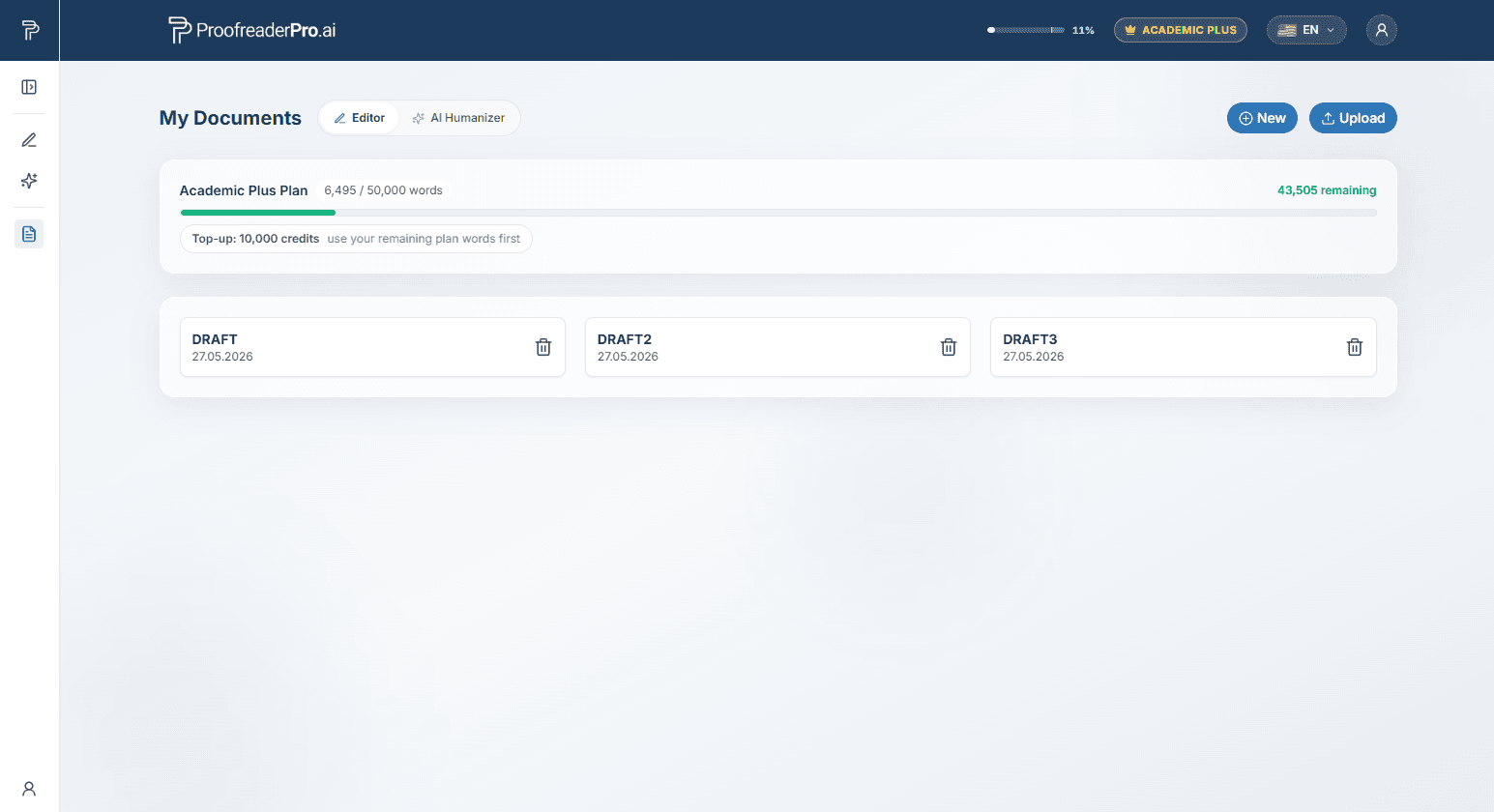
لوحة التحكم تحتوي على أداتين، وكلاهما متاح من لوحة الشريط الجانبي على اليسار:
- المحرر: مساحة عمل كاملة للكتابة مع تدقيق إملائي/لغوي بالذكاء الاصطناعي، وتتبع التغييرات، وإدارة المستندات.
- مُحوِّل الذكاء الاصطناعي إلى بشر: يعيد صياغة النص المدعوم بالذكاء الاصطناعي بصوت إنساني طبيعي، حتى 1,000 كلمة لكل مرة.
يمكن تثبيت اللوحة الجانبية مفتوحة أو طيّها إلى شريط أيقونات ضيق. استخدم أيقونة اللوحة في الزاوية العلوية لتبديل حالتها بين الاثنين. كما تعرض اللوحة مستنداتك، وسجلّ عملية التحويل إلى أسلوب بشري (على تبويب Humanizer)، وروابط إلى حسابك، ودليل المستخدم هذا، و تسجيل الخروج في أسفل الصفحة.
المحرر
البدء السريع
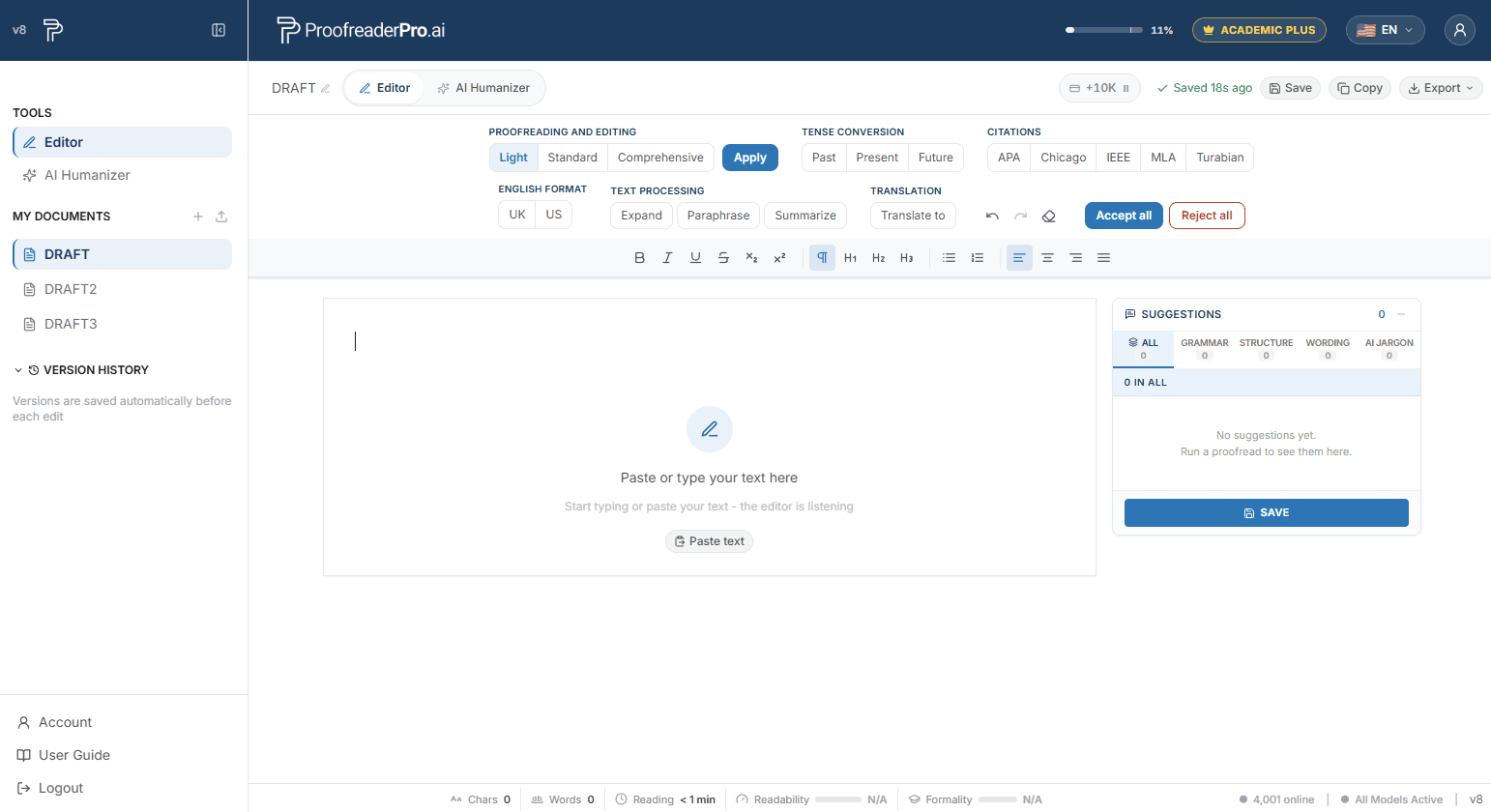
- الصق نصك أو اكتب نصك داخل المحرر.
- اختر مستوى تدقيق (Light أو Standard أو Comprehensive) ثم انقر فوق تطبيق.
- راجع التغييرات المعلّمة في نصك ولوحة الاقتراحات في الجهة اليمنى، ثم اقبل كل تعديل أو ارفضه.
- تصدير إلى Word أو PDF، مع أو بدون التغييرات المسجّلة (التعقّبات).
التدقيق اللغوي والتحرير
يتوفر ثلاثة مستويات عمق من شريط الأدوات. للحصول على نتائج بجودة أعلى، قم بتحرير أقل من 600 كلمة في كل مرة.
- خفيف: فقط القواعد والإملاء وعلامات الترقيم. الخيار الأكثر أمانًا للنص الذي تم إنسانيّته بالفعل.
- قياسي: تحسينات إضافية لقواعد اللغة، مع تحسينات للوضوح وسلاسة تدفق النص.
- شامل: إعادة صياغة أعمق لتحسين قابلية القراءة والأسلوب.
لوحة الاقتراحات
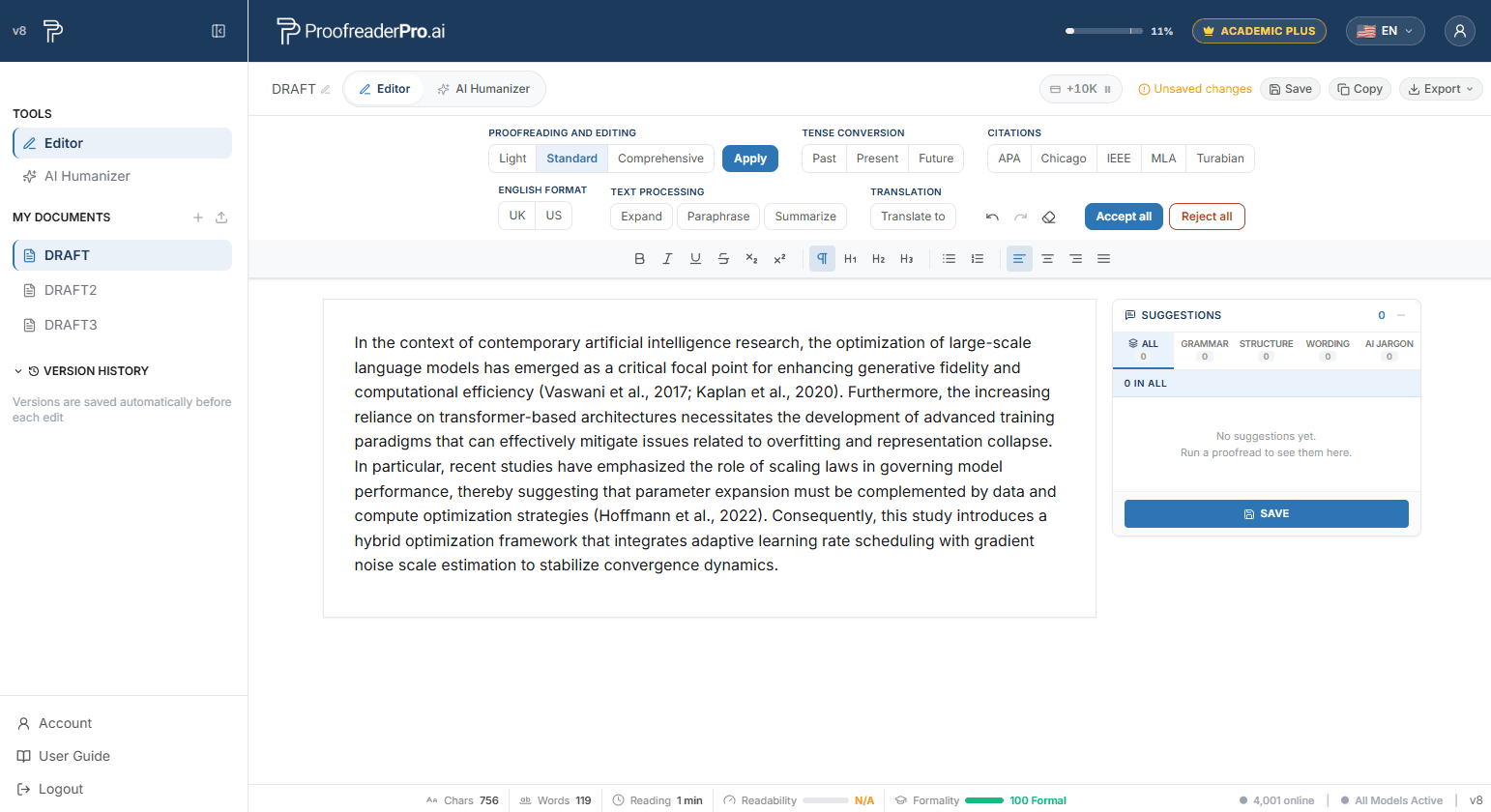
تظهر كل عملية تحرير كاقتراح في اللوحة الموجودة على اليمين، مُجمَّعة حسب الفئة. انقر على أي اقتراح للانتقال إليه داخل النص، ثم قبله أو ارفضه بشكل فردي.
التغييرات المُتتبَّعة
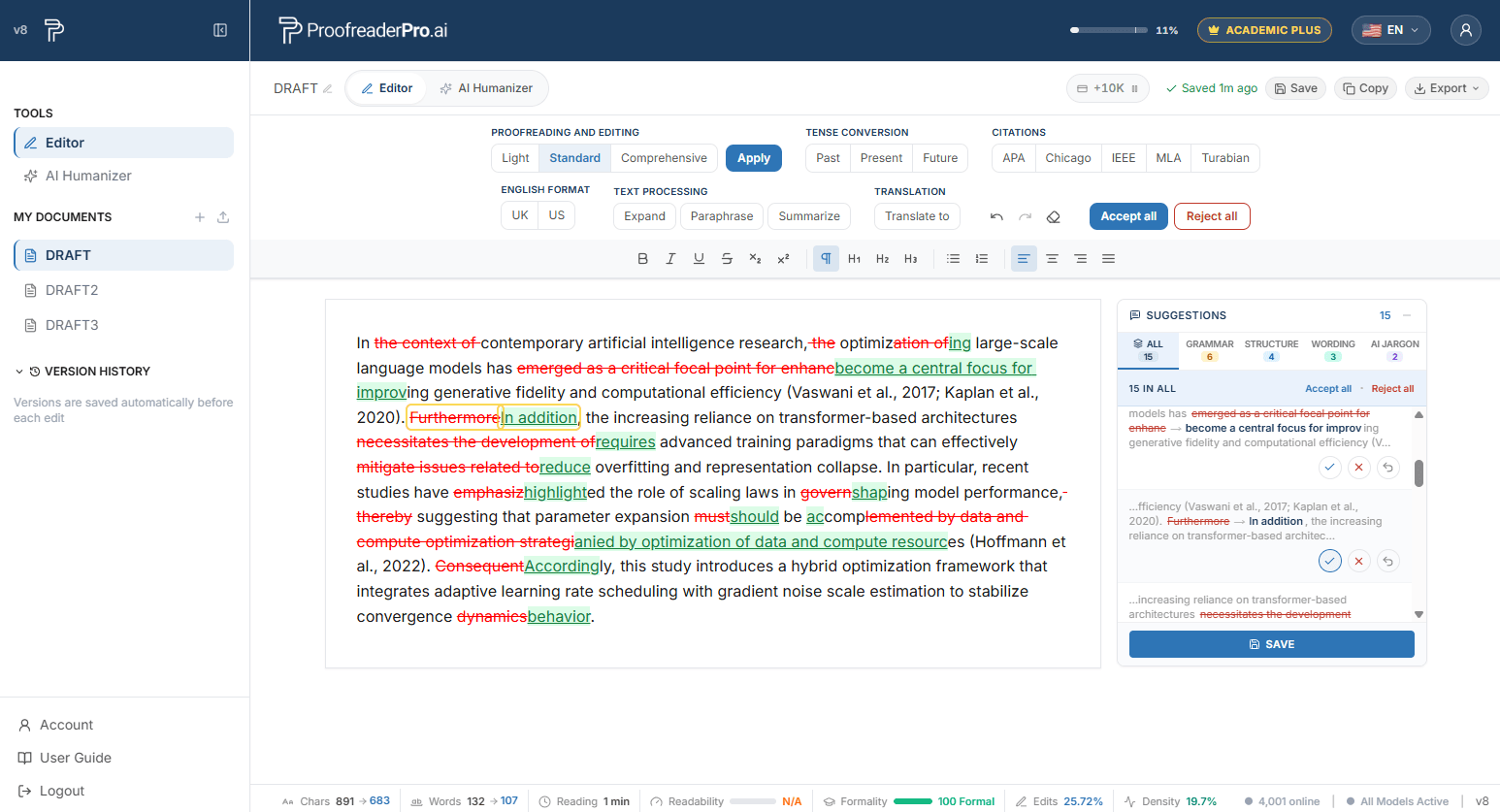
تظهر التعديلات داخل النص كتأكيدات إدراج (تسطير أخضر) وحذف (تشطيب أحمر)، وبأسلوب Word.
- تغيير واحد: انقر مباشرةً على إدراج أو حذف، ثم استخدم أزرار قبول أو رفض التي تظهر.
- عدة تغييرات: قم بتمييز مقطع والنقر لقبول أو رفض كل ما بداخله مرة واحدة.
- كل التغييرات: استخدم قبول الكل أو رفض الكل في شريط الأدوات.
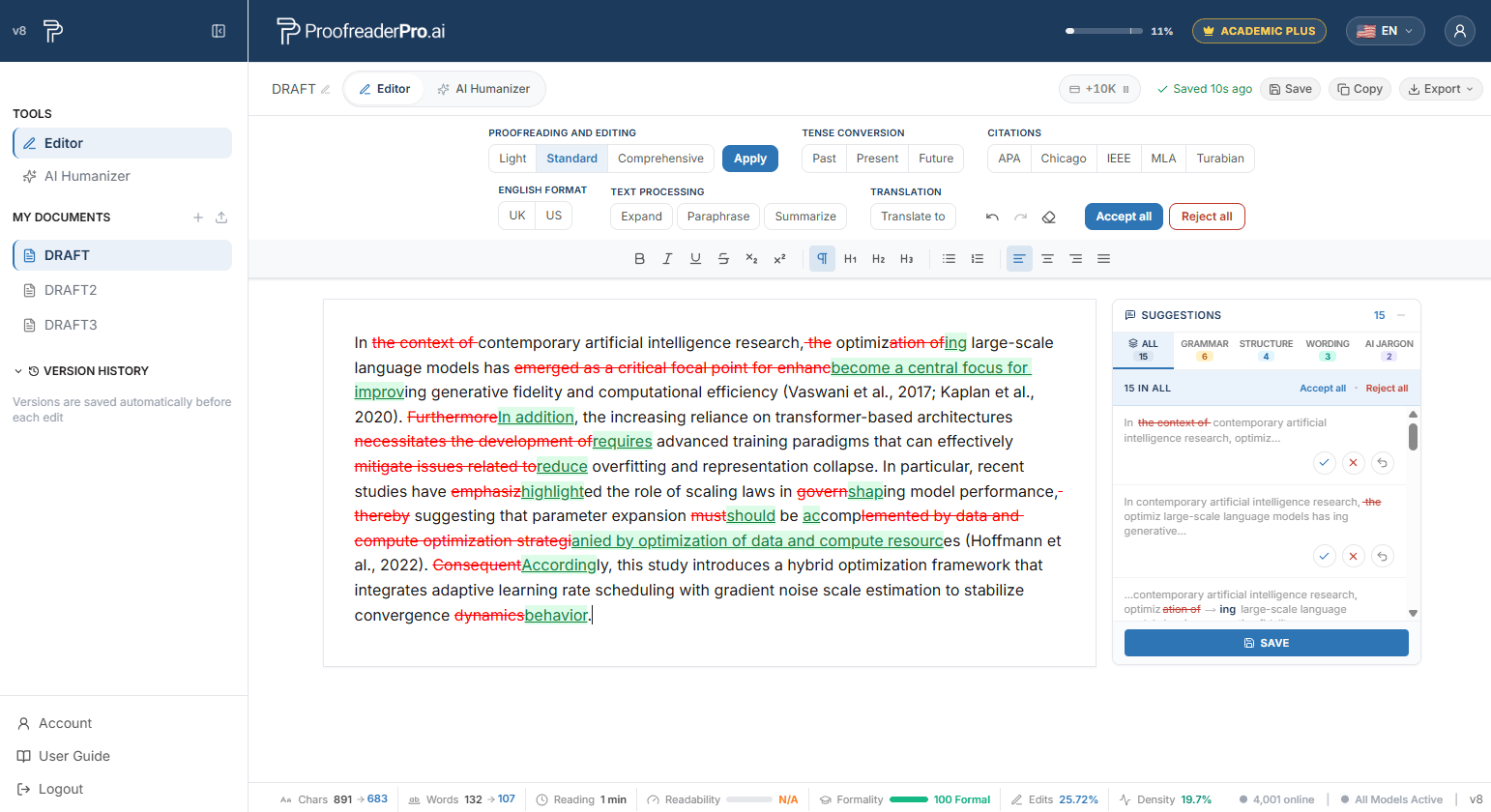
تحويل الزمن
حدد الماضي أو الحاضر أو المستقبل ضمن أداة زمن الفعل (Tense) في شريط الأدوات. يتم ضبط جميع الأزمنة في النص تلقائيًا، مع تتبّع كل تغيير.
تعديل الاستشهادات
اختر APA أو Chicago أو IEEE أو MLA أو Turabian ضمن الاستشهادات. يتم تحويل جميع الاستشهادات داخل النص تلقائيًا إلى التنسيق المحدد.
بدّل بين تهجئة المملكة المتحدة والولايات المتحدة من شريط الأدوات. يتم تحويل النص تلقائيًا (colour إلى color، organise إلى organize، وهكذا).
التوسيع، إعادة الصياغة، التلخيص
ضمن معالجة النص، تتوفر ثلاث تحويلات بنقرة واحدة ضمن:
- توسيع: يُطيل النص مع إضافة تفاصيل داعمة.
- إعادة الصياغة: إعادة صياغة النص مع الحفاظ على المعنى.
- لخّص: يُبسّط النص إلى النقاط الرئيسية.
ترجمة
انقر على ترجمة إلى في شريط الأدوات واختر لغة الهدف. تتم ترجمة المستند في مكانه، مع تتبّع التغييرات مثل أي تعديل آخر.
تصدير المستند الخاص بك
صدّر المستند الخاص بك إلى Word أو PDF، سواء بنسخة نظيفة أو مع إدراج التغييرات المتعقّبة، وجاهزة للمشرفين وزملائك في التأليف. يمكنك أيضًا نسخ النص مع التغييرات المتعقّبة ولصقه مباشرة في Microsoft Word.
تعديل المقاييس
يعرض الشريط في أسفل المحرر إحصاءات المستند بشكل مباشر: عدد الأحرف والكلمات ووقت القراءة، بالإضافة إلى درجات قابلية القراءة وجودة الكتابة واكتشاف الذكاء الاصطناعي (اختياري). يمكنك تفعيل/تعطيل المقاييس الاختيارية من قائمة المستخدم.
مُحَوِّل الذكاء الاصطناعي إلى صياغة بشرية
من يناسبه AI Humanizer؟
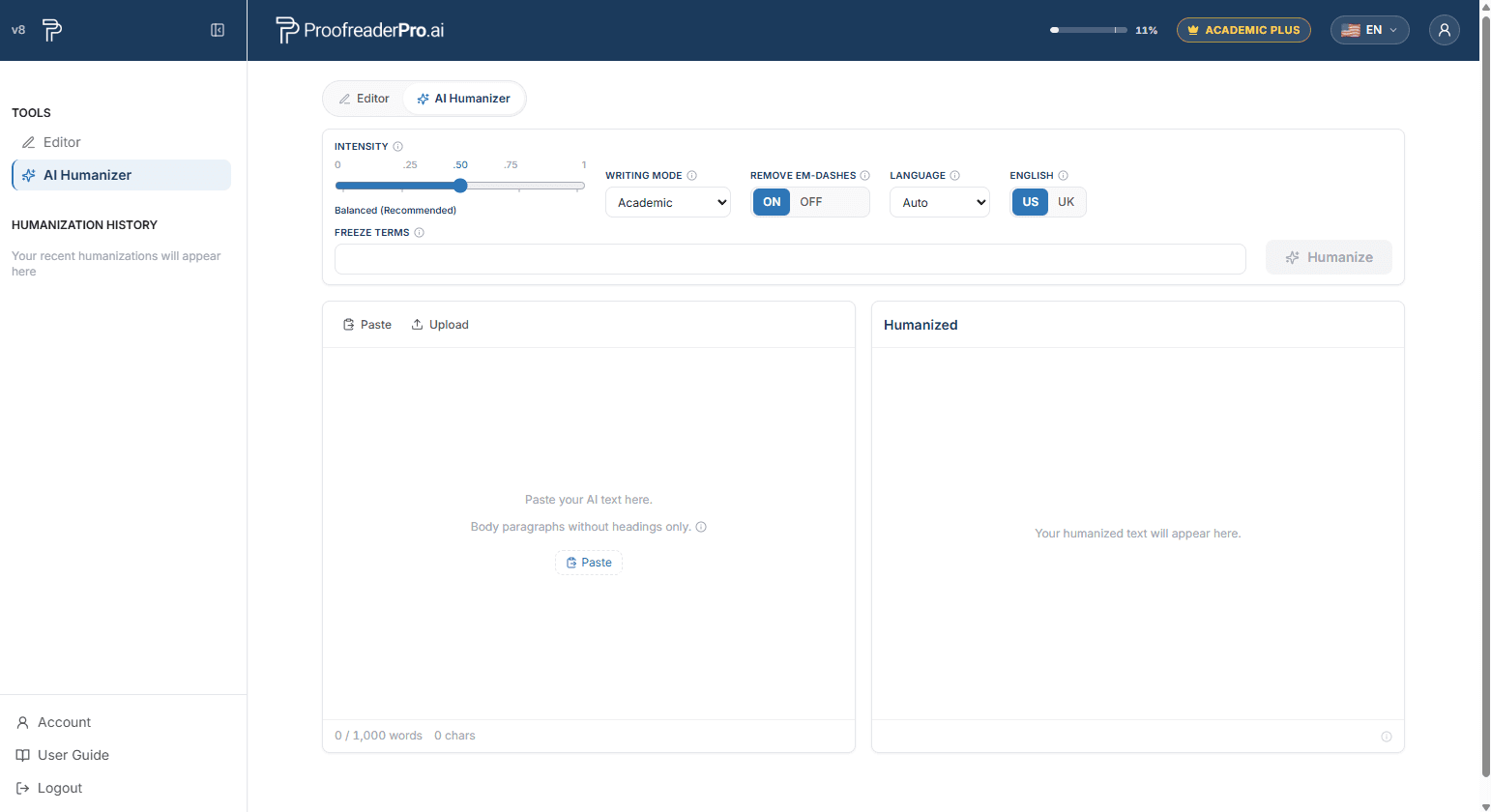
يعيد AI Humanizer صياغة النص المُنشأ بواسطة الذكاء الاصطناعي ليبدو كتابةً طبيعية ومحكمة كما لو أنها صادرة عن إنسان، مع الحفاظ على المعنى والاستشهادات والمصطلحات لديك. سواء كان مسودتك قد كُتبت باستخدام ChatGPT أو Claude أو Gemini أو أي أداة كتابة أخرى مدعومة بالذكاء الاصطناعي، فإن الأداة تزيل الأنماط التي تميّزها كاشفات الذكاء الاصطناعي وتُرجع نصًا يُقرأ كما لو أنه مكتوب بواسطة أنت.
- الباحثون الأكاديميون والطلاب: حوّل مقالات وأطروحات ورسائل جامعية ومراجعات أدبيات ومخطوطات المجلات المُساعدة بالذكاء الاصطناعي إلى صياغة بشرية في وضع Academic. يتم الحفاظ على الاستشهادات والإحصاءات والمصطلحات الخاصة بالتخصص كما هي تمامًا، كما يحافظ الإخراج على أسلوب رسمي أكاديمي.
- كتّاب محتوى تحسين محركات البحث (SEO) وفرق التسويق: يعمل على إضفاء الطابع الإنساني على منشورات المدونات التي تم إنشاؤها بواسطة الذكاء الاصطناعي وصفحات الهبوط ووصف المنتجات في وضع Blog/SEO. يحمي كلماتك المفتاحية الأساسية والثانوية وطويلة الذيل عبر إعادة الصياغة وينشر محتوى يبدو طبيعيًا وبأسلوب إنساني على نطاق واسع.
- المحترفون في مجال الأعمال: حوّل التقارير والمقترحات ورسائل البريد الإلكتروني والمراسلات الداخلية التي تم إنشاؤها بواسطة الذكاء الاصطناعي إلى صياغة احترافية بنبرة أعمال في وضع Corporate.
- الكتّاب الإبداعيون والمدوّنون: امنح المسودات المُنشأة بمساعدة الذكاء الاصطناعي صوتًا أكثر حيوية وطابعًا شخصيًا في وضع Creative.
- الكتّاب بأي لغة: يجعل نص الذكاء الاصطناعي طبيعيًا في 67 لغة، من الإسبانية والفرنسية والعربية إلى الصينية واليابانية والهندية والأردية والهاوسية، مع تضمين اكتشاف اللغة تلقائيًا.
بدء سريع
- افتح AI Humanizer من اللوحة الجانبية.
- الصق نصك المدعوم بالذكاء الاصطناعي في لوحة الإدخال، أو حمّل ملف .docx أو .txt. استخدم فقرات النص الأساسية فقط: تتم إعادة كتابة العناوين والأقسام والجداول والأشكال كنص فقرة عادي، لذا قم بإزالتها أولاً.
- اضبط شدة الكتابة ووضع الكتابة.
- انقر على Humanize. تستغرق العملية المعتادة 15 إلى 45 ثانية؛ وقد تستغرق التمريرات الطويلة وقتًا أطول.
- راجع النتيجة، ثم انسخها أو صدّرها بالتنسيق المفضل لديك.
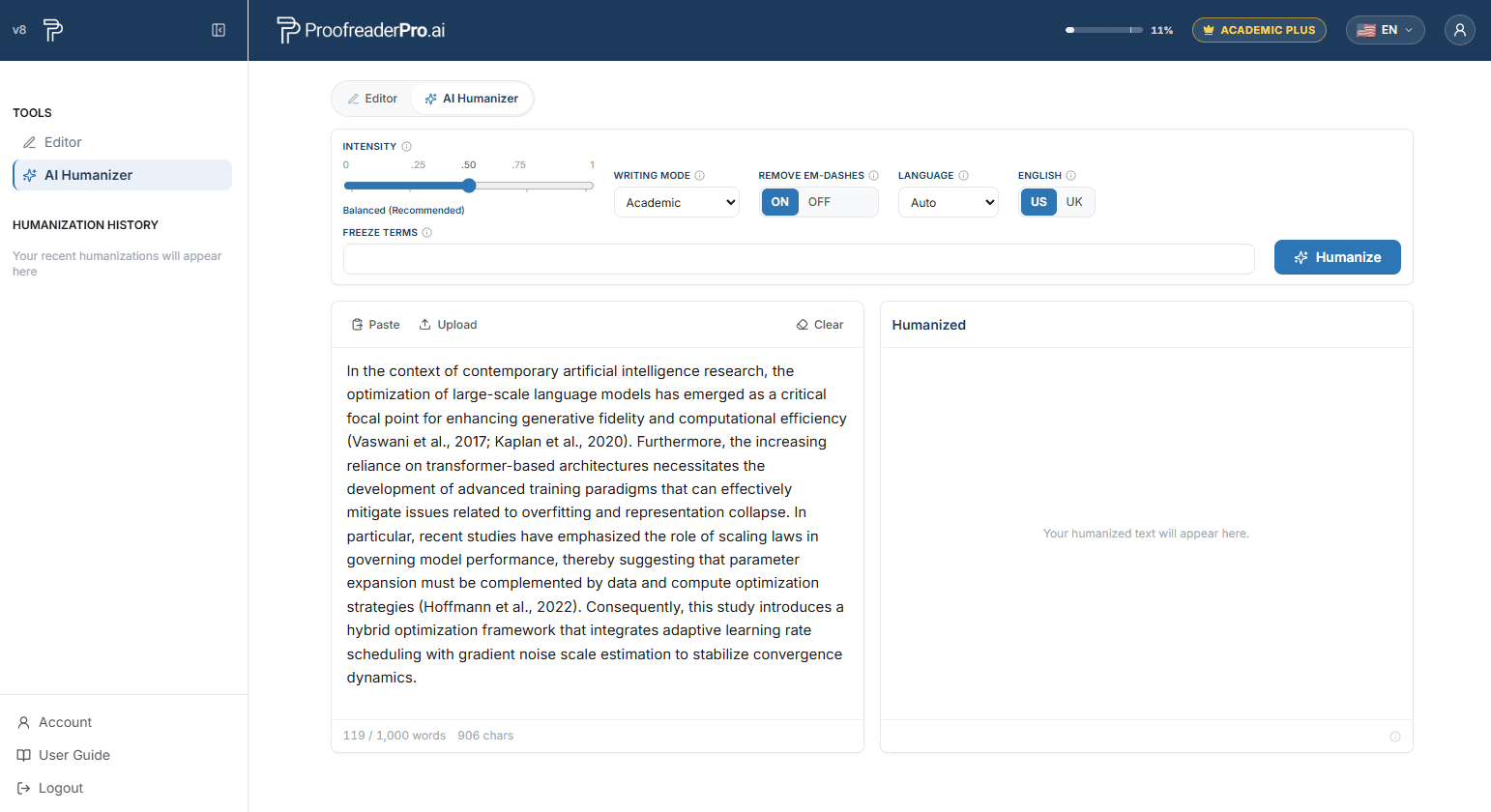
شدة التحسين (Humanization)
يحدد شريط التمرير مدى إعادة كتابة النص بعمق:
- خفيف: يحافظ على أفضل قابلية للقراءة، لكنه من المرجح أن يتم وضعه تحت المراقبة بواسطة كاشفات الذكاء الاصطناعي.
- معتدل+: إعادة صياغة أعمق قليلًا مع الحفاظ على أولوية سهولة القراءة.
- متوازن: أفضل توازن بين قابلية القراءة وخفض درجة الذكاء الاصطناعي. موصى به.
- قوي: إعادة صياغة أعمق لتحقيق خفض أكبر في درجة الذكاء الاصطناعي، مع الحفاظ على معظم قابلية القراءة.
- عدواني: تخفض درجات الذكاء الاصطناعي إلى أدنى مستوى، مع قابلية قراءة أقل قليلًا.
أنماط الكتابة
- أكاديمي: يحافظ على الاستشهادات و يوسع الاختصارات. للأطروحات والبحوث والتقارير.
- Corporate: نبرة أعمال مصقولة.
- إبداعي: نثر أكثر حيوية وتعبيرًا.
- المدونة/SEO: نبرة محادثية لمحتوى الويب، مع حماية كلمات مفتاحية لتحسين محركات البحث (انظر أدناه).
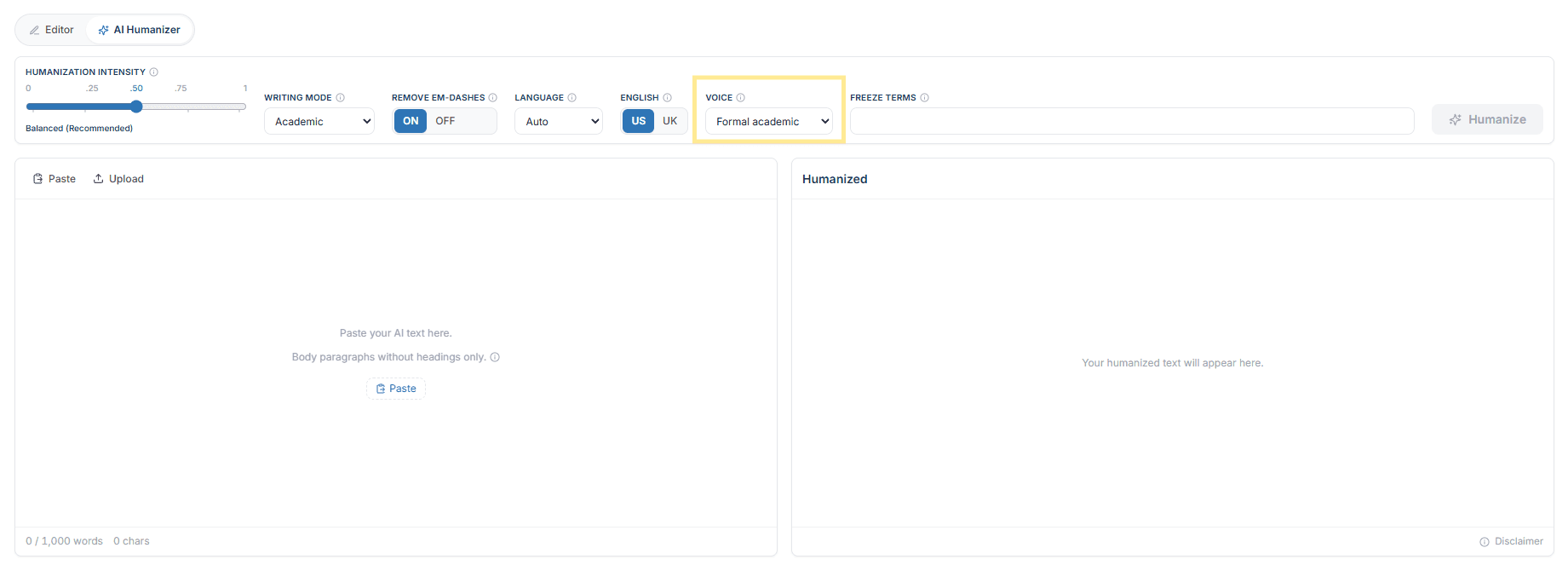
مرشح الصوت
تحدد أداة الصوت الملاصقة لوضع الكتابة أي شخص نحوي يجوز للنص المحول استخدامه. وهي ترشح الصوت الذي تحمله مسودتكم أصلا، لذا اكتبوا في الصوت الذي تتطلبه مقدمتكم، ثم اختاروا الخيار المطابق له.
- طابق مسودتي: يحافظ على الصوت كما هو مكتوب تماما.
- أكاديمي رسمي: صياغة غير شخصية من دون المتكلم أو المخاطب، وهي الإعداد الخاص بالأوراق البحثية والأطروحات.
- بصيغة المتكلم فقط: يبقي على «أنا» و«نحن» ويستبعد صيغة المخاطب.
- صيغة المخاطب (ثاني شخص): يبقي على «أنت» أو «أنت» ويستبعد صيغة المتكلم.
ينطبق هذا الإعداد على التحسين كاملا. يعد الصوت إحدى مزايا Academic Plus.
دعم اللغات (67 لغة)
يعمل أداة AI Humanizer في 67 لغة، بدءًا من الإسبانية والعربية والصينية وصولًا إلى الأردية والهندية والهوسا. يتم اكتشاف لغتك تلقائيًا: عند التعرف على لغة غير إنجليزية، يظهر إشعار صغير تحت لوحة الإدخال. لإلغاء الاكتشاف التلقائي، اختر اللغة من قائمة اللغة. ينطبق خيار تحويل تهجئة US/UK على النص الإنجليزي فقط، وهو معطّل للغات الأخرى.
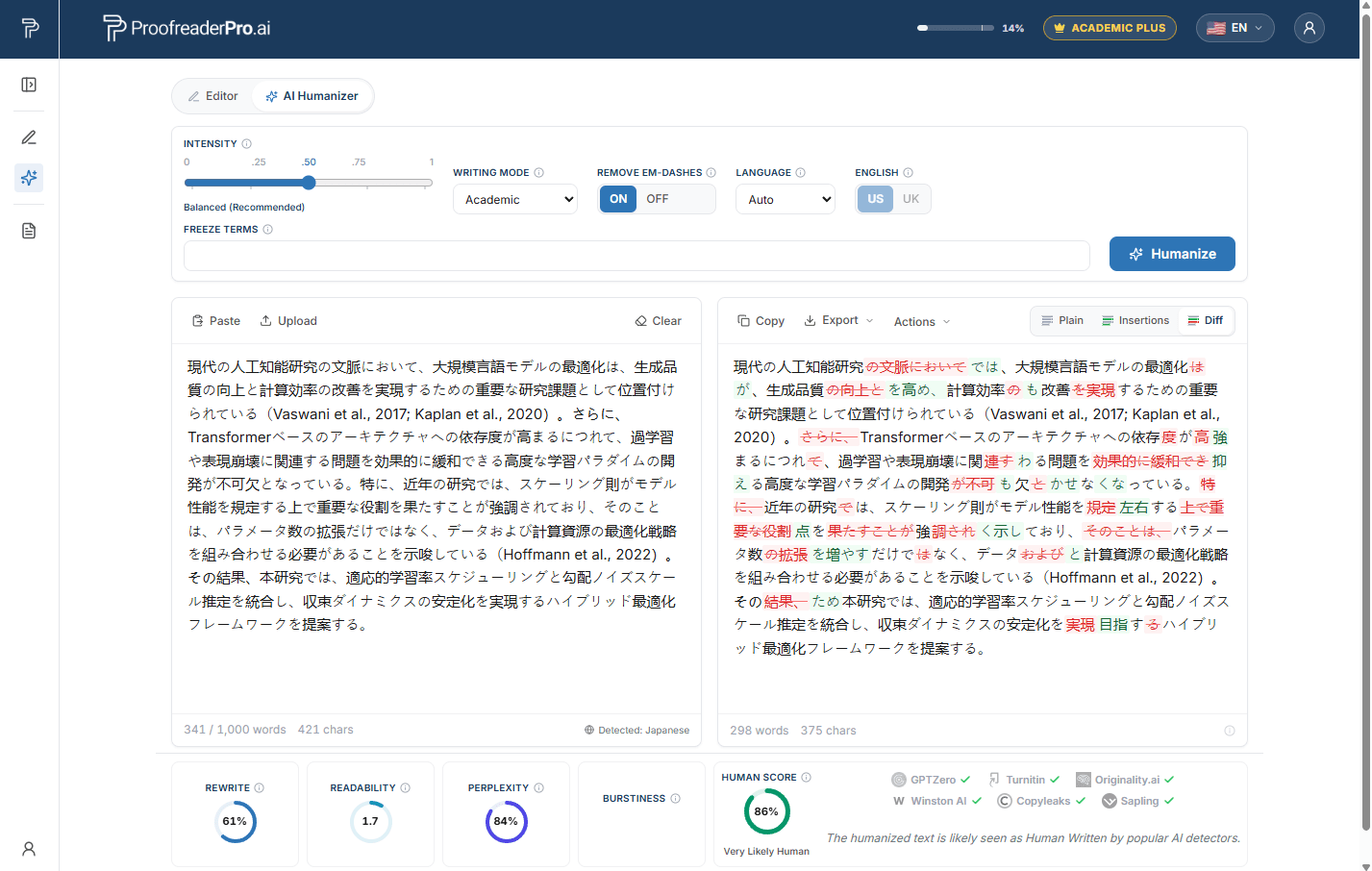
تثبيت المصطلحات
مصطلحات التجميد هي كلمات أو عبارات يجب على المُحَوِّل البشري (humanizer) الاحتفاظ بها كما هي تمامًا، حرفًا بحرف. تم تصميمها للكتابة الأكاديمية والتقنية: أسماء المؤلفين، والاستشهادات داخل النص، والإحصاءات المُبلَّغ عنها مثل p < 0.05، والصيغ الكيميائية، والمصطلحات الخاصة بكل مجال والتي يجب ألا تتم إعادة صياغتها.
- اكتب مصطلحًا واضغط على Enter أو الفاصلة. يجب أن تظهر المصطلحات في نص الإدخال الخاص بك؛ حتى 10 مصطلحات في كل مرة.
- يتم تمييز المصطلحات المجمدة باللون الكهرماني في إدخال البيانات لديك وفي النتيجة، حتى تتمكن من التأكد من أنها بقيت دون تغيير.
- بعد اكتمال الجولة، يتم مسح الحقل للنص التالي، وتنتقل العبارات إلى شرائح بنقرة واحدة أسفلها لإعادة استخدامها بسهولة.
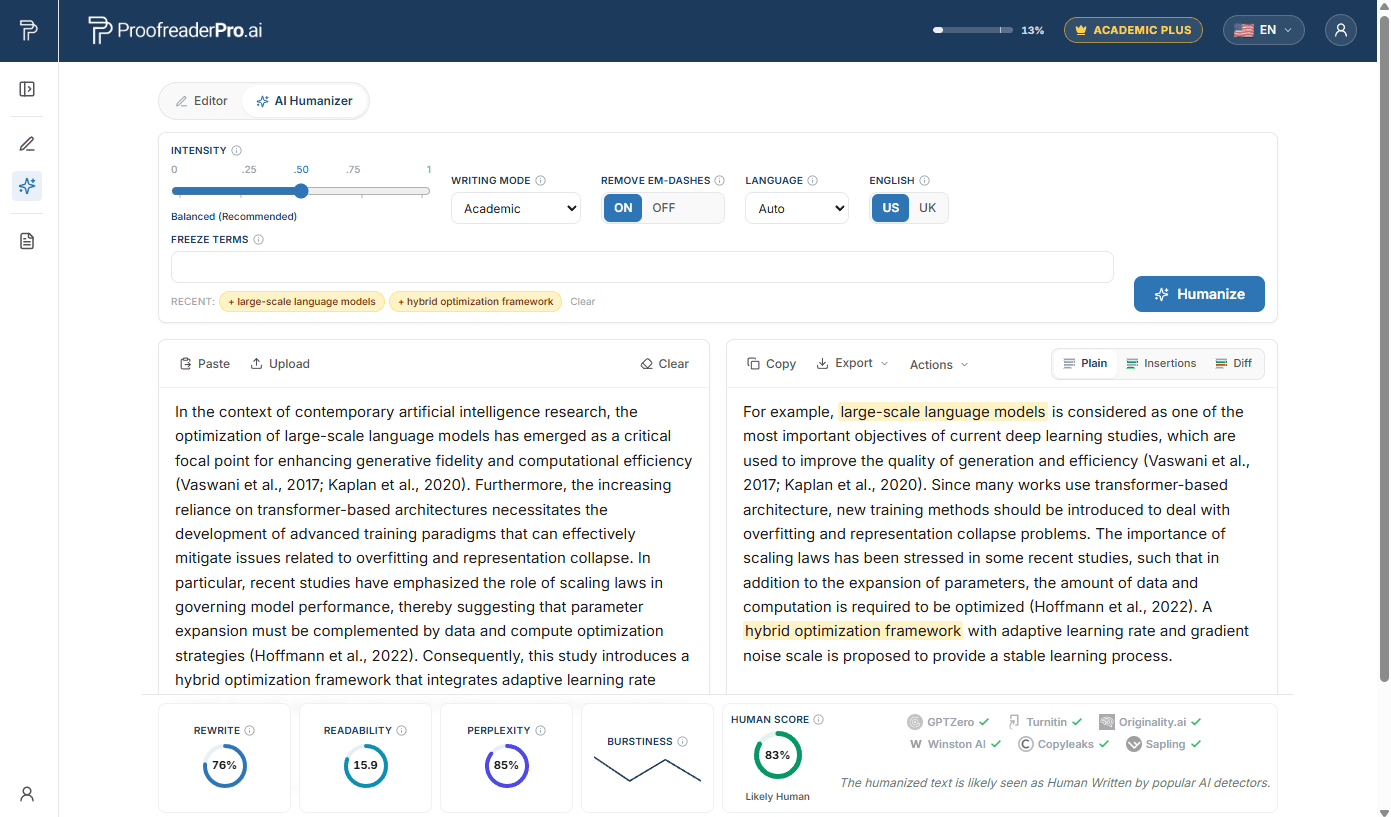
الكلمات المفتاحية لتحسين محركات البحث (وضع Blog/SEO)
لدى كتّاب المحتوى مشكلة مختلفة: تعتمد ترتيبات البحث على بقاء عبارات الكلمات المفتاحية المطابقة حرفيًا بعد إعادة الصياغة. في وضع Blog/SEO يصبح الحقل هو كلمات SEO المفتاحية. أضف كلماتك المفتاحية الأساسية والثانوية وكلمات الذيل الطويل، وسيحافظ المُحسِّن البشري (Humanizer) على كل واحدة منها كما هي تمامًا أثناء إعادة كتابة النص حولها، بحيث يظل مقالك بعد “Humanized” محسّنًا للطلبات التي تستهدفها.
- يعمل بالطريقة نفسها مثل عبارات التجميد: أدخل أو استخدم الفاصلة للإضافة، بما يصل إلى 10 كلمات مفتاحية لكل مرة، ويجب أن يكون كل مصطلح موجودًا بالفعل في مسودتك.
- تظهر الكلمات الرئيسية المحمية باللون الكهرماني (Amber) في المخرجات، ما يتيح لك فحصًا بصريًا سريعًا للتأكد من أن تحسين SEO على الصفحة قد نجا من عملية الـ Humanizer.
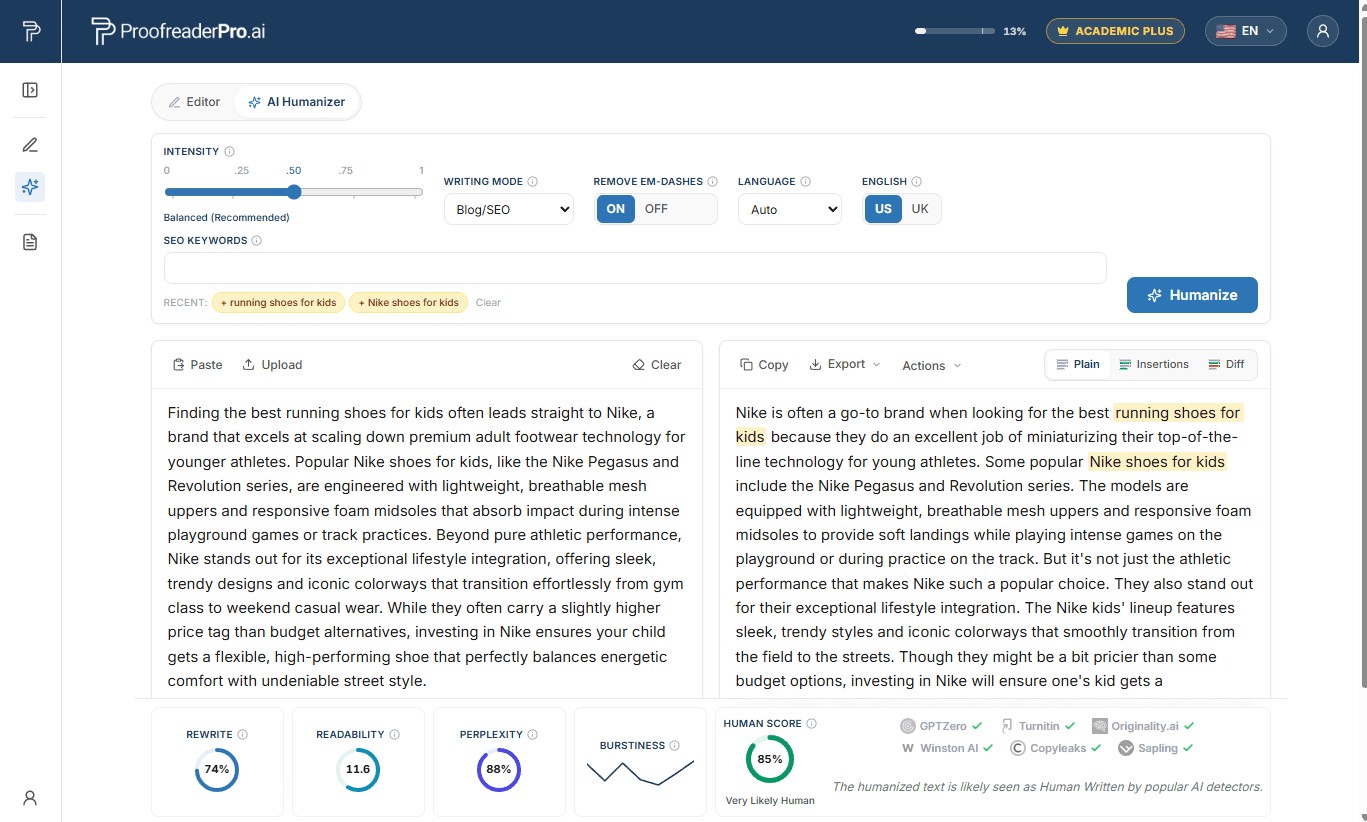
مراجعة نتيجتك
تحتوي لوحة الإخراج على ثلاثة طرق عرض:
- خفيف: النص النهائي، جاهز للنسخ.
- الإدراجات: يميز الأجزاء التي تمّت كتابتها حديثًا.
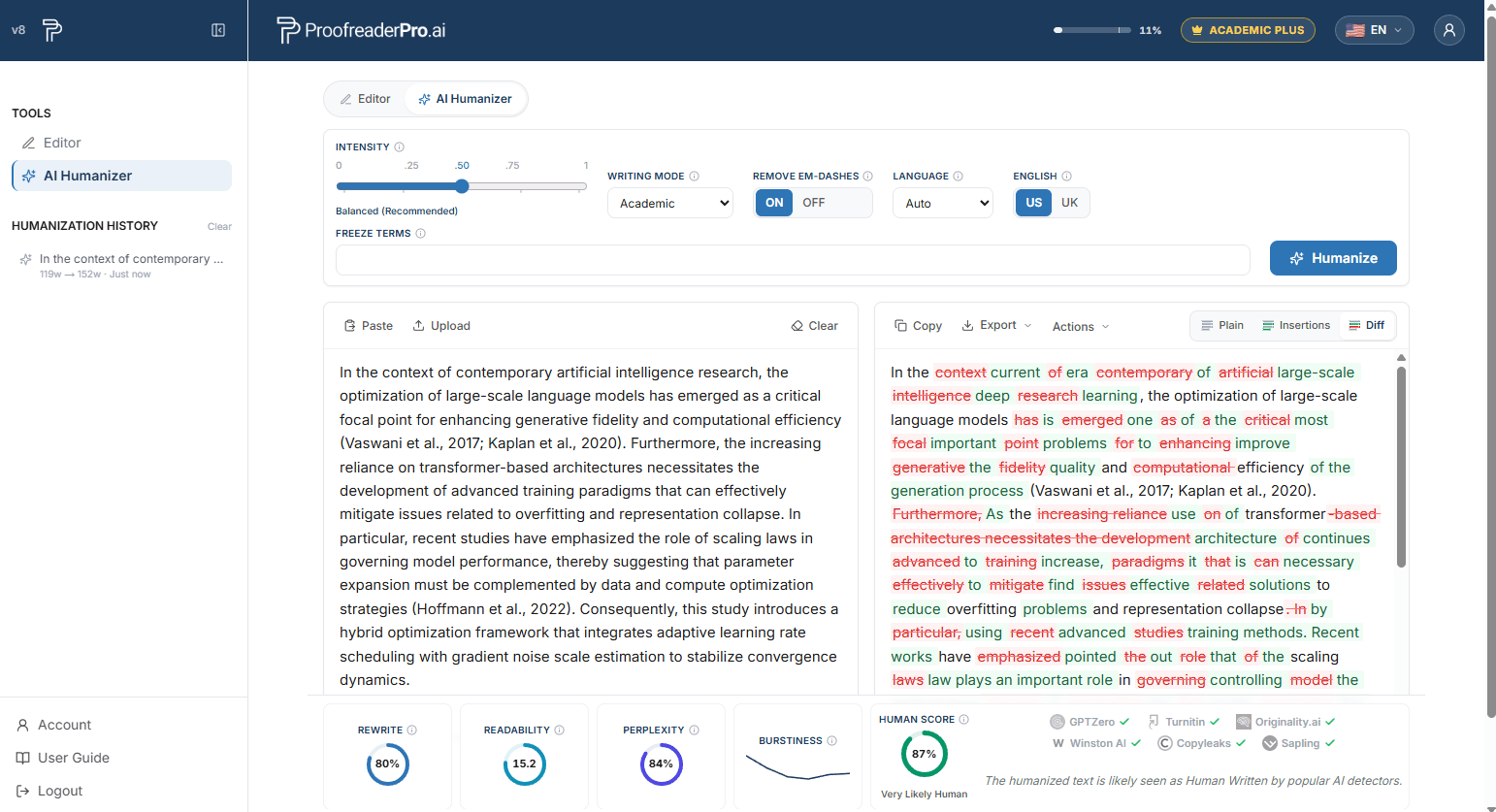
- فرق: مقارنة شاملة مقابل إدخالِك، مع تمييز الإضافات والحذف.
أسفل اللوحات، تعرض شريط المقاييس درجة Human Score الخاصة بك إلى جانب نسبة إعادة الصياغة، وقابلية القراءة، والتعقيد (perplexity)، ودرجة التشتت (burstiness). مرّر مؤشر الماوس فوق أيقونات المعلومات للحصول على شرح مبسّط لكل مقياس.
التصدير والنسخ
استخدم Copy لنسخ سريع للنتيجة العادية إلى الحافظة. يتيح لك خيار التصدير (Export) التصدير إلى Word وPDF (بنظيف أو مع تغييرات تم تتبعها)، بالإضافة إلى النص العادي وHTML. كما أن Copy as Markdown وCopy as HTML ينتجان فقرات جاهزة للنشر داخل نظام إدارة المحتوى (CMS) لـ WordPress وGhost والمحررات المماثلة.
إعادة تهيئة النص ليبدو بشريًا والتدقيق في المحرر
- إعادة التحييد (Humanize مرة أخرى): يشغّل الإخراج عبر تمريرة أخرى لإعادة صياغة أقوى. تستخدم كل تمريرة كلمات ضمن الحصة المسموح بها لديك.
- تحقق من النص في المحرر: يحفظ النتيجة في مستند جديد ويقوم بفتحه في Editor. تنبيه: استخدم التدقيق الخفيف Light Proofreading فقط، لأن التحرير الأكثر كثافة بالذكاء الاصطناعي قد يرفع مرة أخرى درجة اكتشاف AI.
سجلّ التحسين (Humanization)
يتم إدراج عمليات التشغيل الأخيرة في اللوحة الجانبية أثناء وجودك في تبويب AI Humanizer. انقر على أي إدخال لاستعادة عملية التشغيل تلك، بما في ذلك إدخالها وإخراجها وإعداداتها. يتم حفظ السجل على جهازك فقط.
حدود الكلمات وعدد المحاولات
- يقبل كل تمريرة بين 50 و1,000 كلمة.
- بالنسبة للمستندات الطويلة، قسّم النص إلى أقسام ثم قم بإنسانيته قسمًا قسمًا على دفعات واحدة تلو الأخرى.
- يستخدم التأنيس كلمات من سعة خطتك الشهرية؛ لا توجد أرصدة منفصلة. تكون كلماتك المتبقية دائمًا ظاهرة في الترويسة.
أسئلة وأجوبة تعليمية (HOW-TO)
إجابات سريعة للمهام الشائعة. تكون كل إجابة قصيرة عمدًا؛ الأقسام أعلاه تغطي كل ميزة بالتفصيل.
ميزات التحرير
كيف يمكنني تدقيق نصي؟
الصق النص في المحرر، واختر Light أو Standard أو Comprehensive ضمن Proofreading and Editing، ثم انقر على Apply. تظهر التعديلات كتغييرات مقترحة لتتمكن من قبولها أو رفضها.
كيف أختار مستوى التدقيق المناسب؟
استخدم Light للنحو والإملاء وعلامات الترقيم فقط (وللنص الذي تمّت إنسانيته بالفعل)، واستخدم Standard للنحو بالإضافة إلى الوضوح وسلاسة الأسلوب، واستخدم Comprehensive لإجراء إعادة صياغة أعمق. يُفضّل ألا تتجاوز عملية التحرير أقل من 600 كلمة لكل مرة للحصول على أفضل جودة.
كيف يمكنني تنسيق الاستشهادات؟
اختر APA أو Chicago أو IEEE أو MLA أو Turabian ضمن قسم الاستشهادات في شريط الأدوات. يتم تحويل جميع الاستشهادات داخل النص تلقائيًا إلى النمط المحدد.
كيف يمكنني تغيير زمن الفعل؟
حدد الماضي أو الحاضر أو المستقبل ضمن تحويل الأزمنة في شريط الأدوات. يتم ضبط الأزمنة عبر كامل النص، مع تتبّع كل تغيير.
كيف يمكنني التبديل بين الإنجليزية البريطانية (UK) والإنجليزية الأمريكية (US)؟
انقر فوق UK أو US ضمن English Format. يتم تحويل الإملاء والأعراف تلقائيًا (colour إلى color، organise إلى organize).
كيف يمكنني إعادة صياغة النص أو توسيعه أو تلخيصه؟
استخدم أزرار النقر الواحد ضمن معالجة النص: يعيد Paraphrase صياغة النص مع الحفاظ على المعنى، وتضيف Expand تفاصيل داعمة، ويقوم Summarize بتكثيف النص إلى النقاط الرئيسية.
كيف يمكنني ترجمة مستندي؟
انقر فوق ترجمة إلى في شريط الأدوات واختر لغة الوجهة. يتم ترجمة المستند في مكانه، مع تتبّع التغييرات مثل أي تعديل آخر.
تغييرات مُتتبَّعة والتصدير
كيف يمكنني عرض التغييرات التي تم تتبّعها؟
تظهر التعديلات داخل النص: إدراجات باستخدام نمط Word مع تسطير أخضر وإظهار المحذوفات بخط أحمر مع شطب. يعرض جزء الاقتراحات في الجهة اليمنى كل تعديل، مجمّعًا في تبويبات: All وGrammar وStructure وWording وAI Jargon.
كيف يمكنني قبول التعديلات أو رفضها؟
انقر على تغيير واحد واستخدم أزرار القبول أو الرفض في النافذة المنبثقة، أو حدِّد مقطعًا للتعامل مع كل ما بداخله مرةً واحدة، أو استخدم قبول الكل/رفض الكل في شريط الأدوات. يوفّر جزء الاقتراحات نفس عناصر التحكم على كل بطاقة تعديل.
كيف يمكنني تصدير مستندي مع التغييرات المسجّلة إلى Word؟
افتح التصدير واختر Word مع التتبّع بالتغييرات. سيتم فتح ملف .docx في Microsoft Word بتتبّع التغييرات الأصلي بحيث يمكن للمشرفين والمؤلفين المشاركين مراجعته. كما تتوفر عمليات تصدير نظيفة إلى Word وPDF، ويمكنك نسخ النص مع التغييرات المتتبَّعة مباشرةً إلى Word.
المستندات
كيف يمكنني رفع مستند؟
انقر على رفع Upload في لوحة التحكم واختر ملفًا بصيغة .docx أو .pdf أو .txt بحجم يصل إلى 4 ميجابايت. تتوفر ميزة رفع المستندات ضمن الخطط المدفوعة.
كيف يمكنني حفظ عملي واستعادة إصدار أقدم؟
انقر فوق حفظ في المحرر. يتم أيضًا أخذ لقطة قبل كل عملية تمرير بواسطة الذكاء الاصطناعي؛ افتح سجل الإصدارات في الشريط الجانبي وانقر فوق استعادة لأي إصدار أقدم أو نفّذ.
كيف يمكنني إعادة تسمية المستند أو حذفه؟
تتوفر كلتا العمليتين في قائمة مستندات لوحة التحكم: استخدم عنصر إعادة التسمية لتغيير العنوان، أو عنصر الحذف لإزالة المستند نهائيًا.
ميزات AI Humanizer
كيف أضفي طابعًا بشريًا على نص الذكاء الاصطناعي؟
افتح AI Humanizer من اللوحة الجانبية، والصق نصّك المدعوم بالذكاء الاصطناعي أو حمّل ملفًا بصيغة .docx أو .txt، ثم اضبط شدة التأثير ووضع الكتابة، وانقر فوق Humanize. تستغرق الجولة المعتادة 15 إلى 45 ثانية.
كيف أضبط شدة الاستنساح؟
اسحب شريط التمرير عبر خمسة مستويات: Mild، Mild+، Balanced، Strong، و Aggressive. يُعد Balanced الخيار الموصى به لتحقيق توازن بين سهولة القراءة وتقليل نتيجة الذكاء الاصطناعي؛ إذ يخفض Aggressive درجات الذكاء الاصطناعي إلى الحد الأكبر.
كيف يمكنني اختيار وضع الكتابة؟
اختر Academic للرسائل العلمية والأبحاث (مع الحفاظ على الاستشهادات، وتوسيع الاختصارات)، وCorporate لصياغة أعمال مصقولة، وCreative لنص أكثر حيوية، أو Blog/SEO لمحتوى الويب مع حماية الكلمات المفتاحية.
كيف يمكنني منع تغيير مصطلحات محددة؟
إضافة مصطلحات التجميد: اكتب مصطلحًا واضغط Enter أو الفاصلة، حتى 10 مصطلحات في كل مرة. يجب أن يظهر كل مصطلح في نص الإدخال لديك. تبقى المصطلحات المجمدة كما هي حرفيًا وتُميَّز باللون الكهرماني في النتيجة.
كيف أحمي كلمات مفاتيح SEO؟
بدّل إلى وضع Blog/SEO وسيصبح حقل مصطلحات التجميد كلمات رئيسية لتحسين محركات البحث. أضف ما يصل إلى 10 كلمات رئيسية وسيقوم AI Humanizer بالحفاظ على كل واحدة منها كما هي تمامًا عند إعادة صياغة النص حولها.
كيف يمكنني إضفاء الطابع الإنساني على النص غير باللغة الإنجليزية؟
ما عليك سوى لصقها: يتم اكتشاف اللغة تلقائيًا عبر 67 لغة، وتظهر ملاحظة أسفل لوحة الإدخال. لإلغاء الكشف التلقائي، اختر اللغة من القائمة المنسدلة اللغة.
كيف يمكنني إزالة الشرطة الطويلة (، ) من نصي؟
قم بتفعيل خيار الشرطة الطويلة (، ) الموجود فوق لوحة الإدخال قبل تشغيل عملية التدقيق. يتم استبدال الشرطة الطويلة بعلامات ترقيم قياسية ضمن عملية إعادة الصياغة.
كيف يمكنني التحقق من Human Score الخاص بي؟
شغّل تمريرة قراءة وتفقّد شريط المقاييس أسفل لوحة الإخراج: درجة Human Score لديك مع نسبة إعادة الصياغة، وقابلية القراءة، وPerplexity، وBurstiness. حرّك المؤشر فوق أيقونات المعلومات للحصول على تفسيرات بلغة مبسّطة.
كيف يمكنني مقارنة النتيجة بإدخالي؟
بدّل لوحة الإخراج إلى عرض Diff لإجراء مقارنة كاملة مع تمييز الإضافات والحذف، أو إلى عرض Insertions لعرض الأجزاء المكتوبة حديثًا فقط.
كيف أشغّل تمريرة ثانية أقوى؟
انقر على إعادة الإنسنة لدفع الناتج عبر معالجة إضافية. كل تمريرة تستخدم كلمات من حصتك الشهرية.
كيف يمكنني تصدير النص المُعاد كتابته؟
استخدم Copy للنتيجة النصية البسيطة، أو قائمة Export الخاصة بـ Word وPDF (نظيف أو مع التغييرات المتتبّعة)، والنص العادي، وHTML. يؤدي Copy as Markdown وCopy as HTML إلى إنشاء فقرات جاهزة للنشر في CMS لـ WordPress وGhost ومحررات مماثلة.
كيف يمكنني استعادة عملية إعادة الصياغة البشرية السابقة؟
في تبويب AI Humanizer، افتح السجل في اللوحة الجانبية ثم انقر على أي إدخال لاستعادة ذلك التشغيل، بما في ذلك إدخاله وإخراجه وإعداداته. يتم حفظ السجل على جهازك فقط.
الحساب والدعم
الوصول إلى صفحة الحساب
افتح اللوحة الجانبية ثم انقر على الحساب في أسفل الصفحة. من هناك يمكنك إدارة خطتك والفوترة، وتغيير كلمة المرور، ومراجعة استخدامك الشهري للكلمات.
إلغاء اشتراكك
- افتح صفحة الحساب من اللوحة الجانبية.
- في قسم إلغاء الخطة بالقرب من الأسفل، انقر على إلغاء الخطة ثم أكد ذلك في بوابة الفوترة الآمنة.
- ستحتفظ بإمكانية الوصول حتى نهاية الفترة التي دفعت عنها بالفعل؛ لا تُفرض أي رسوم إضافية بعد ذلك.
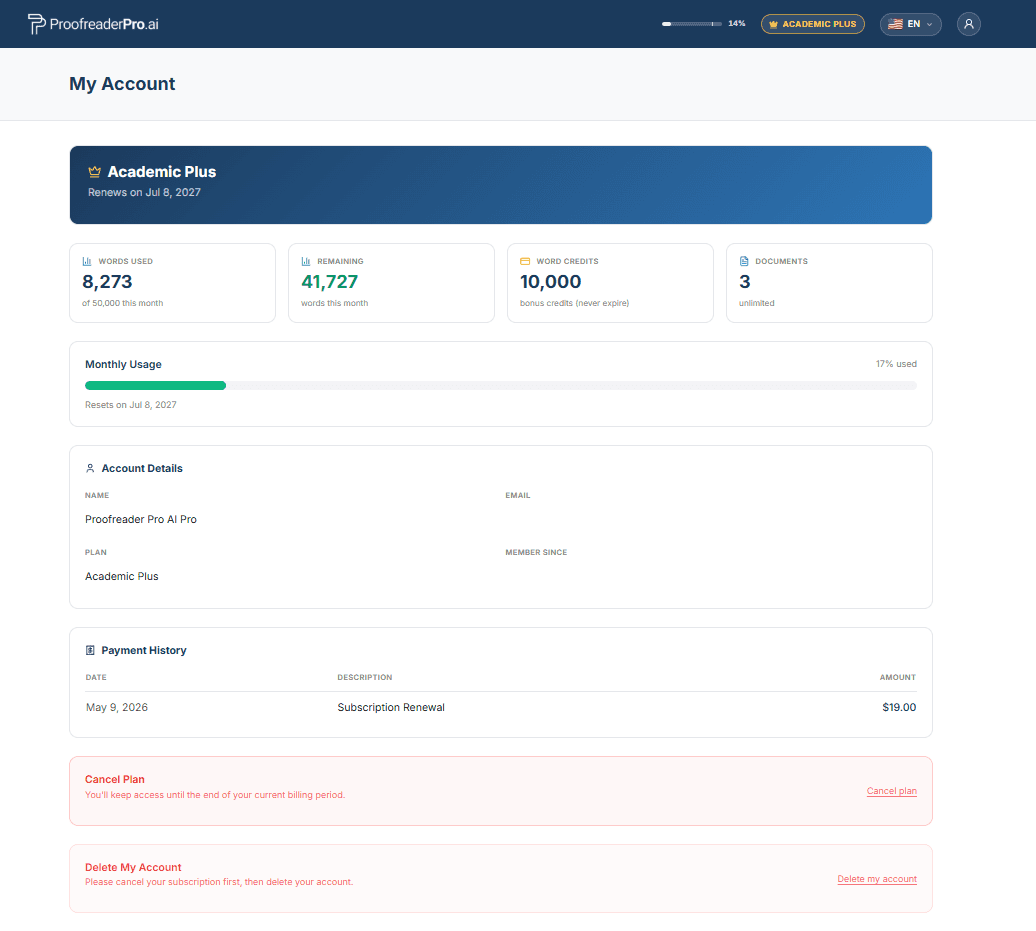
حذف حسابك
في صفحة الحساب، اختر حذف حسابي. يؤدي ذلك إلى إزالة حسابك والوثائق والبيانات الشخصية بشكل دائم، ولا يمكن التراجع عنه. إذا كانت لديك اشتراك نشط، فألغِه أولاً حتى لا يتم تحصيل أي رسوم إضافية.
تغيير لغة الواجهة
انقر على أيقونة الكرة الأرضية في الزاوية العلوية اليمنى وحدد اللغة المفضلة لديك. ستتغير الواجهة بالكامل إلى اللغة المحددة.
افتح قائمة المستخدم من الزاوية العلوية اليمنى وحدد الدعم، أو تواصل معنا مباشرة عبر البريد الإلكتروني على hello@ProofreaderPro.ai. نرد خلال يوم عمل واحد.

