
Fitur Aplikasi
AI ProofreaderAI Text HumanizerAlat Parafrase AIAI PerangkumPenerjemah AIAlat GratisFAQPanduan penggunablogPenetapan hargaKontakDaftar; GratisMasukDengan mendaftar, Anda menyetujui Syarat dan Ketentuan serta Kebijakan Privasi kami.
DOKUMEN
EDITOR
AI HUMANIZER
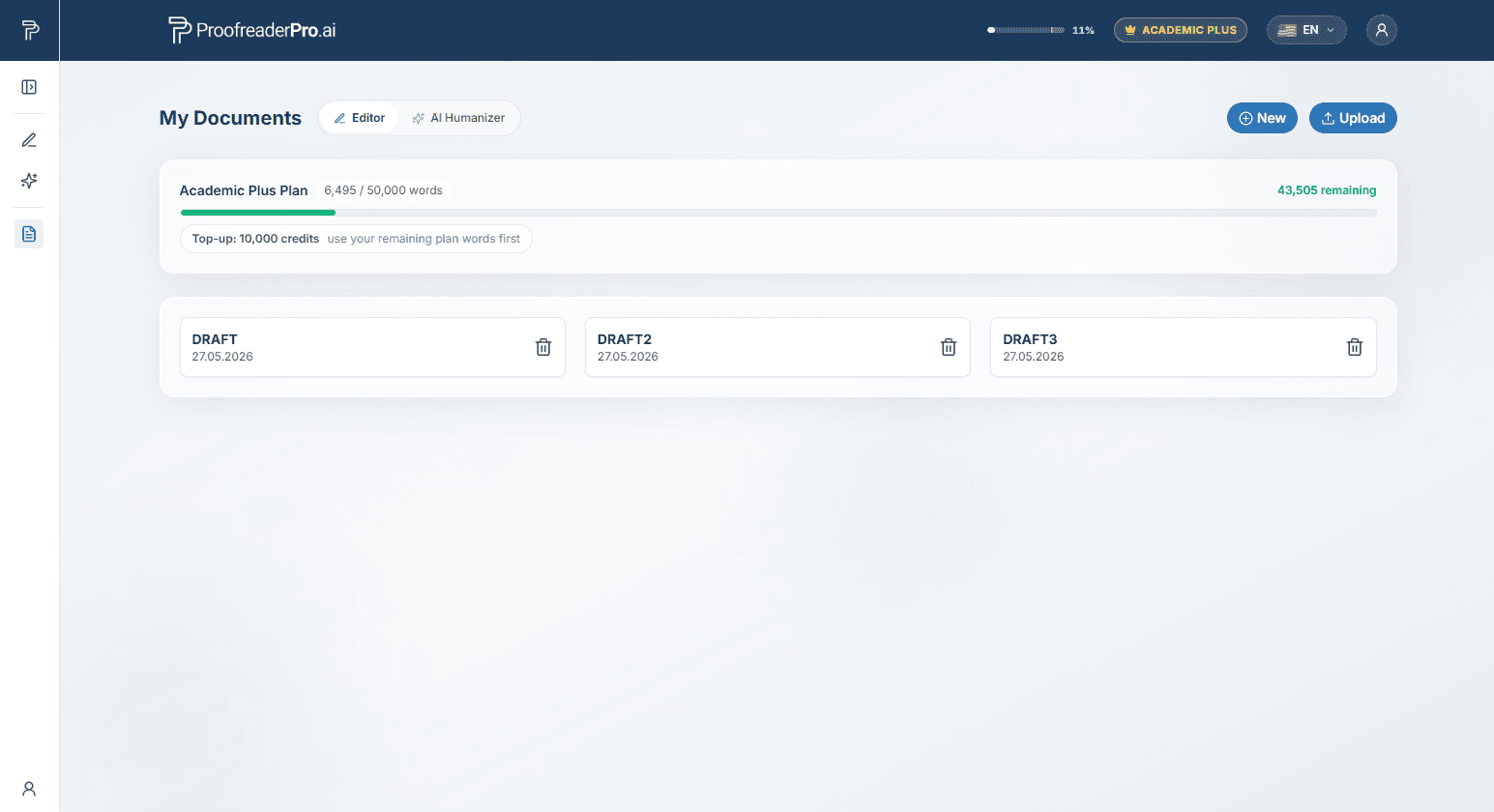
Dasbor memiliki dua alat, keduanya tersedia dari panel samping di sebelah kiri:
Panel samping dapat dipin agar tetap terbuka atau diciutkan menjadi rel ikon yang sempit. Gunakan ikon panel di sudut atas untuk beralih di antara dua status tersebut. Panel ini juga menampilkan dokumen Anda, riwayat humanisasi Anda (di tab Humanizer), serta tautan ke Akun Anda, Panduan Pengguna ini, dan Keluar (Log Out) di bagian bawah.
Pekerjaan Anda disimpan otomatis saat Anda mengetik. Versi dokumen Anda juga disimpan sebelum setiap pengeditan AI: buka Riwayat Versi di panel samping dan klik ikon pemulihkan di samping versi mana pun untuk mengembalikannya.
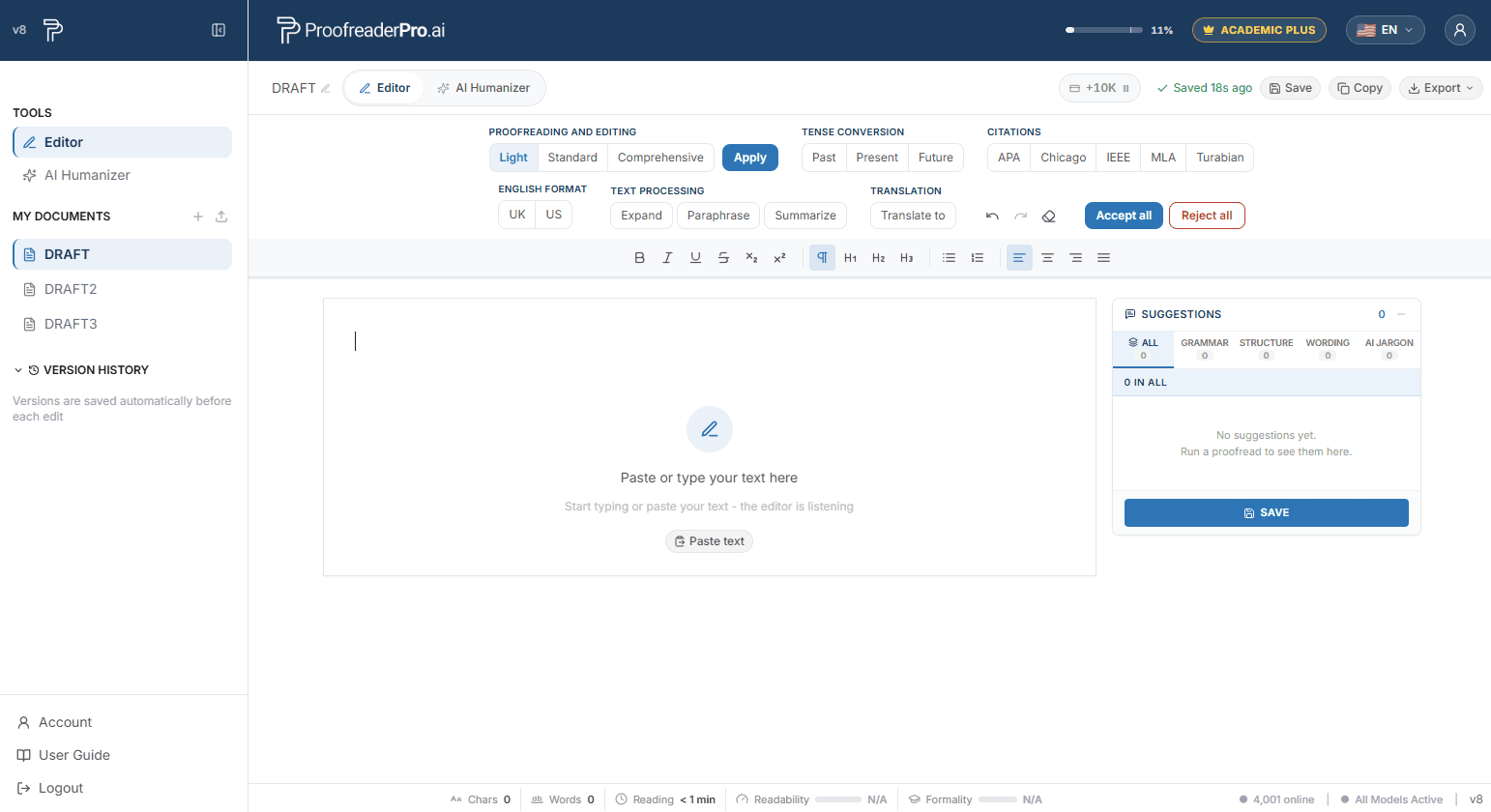
Tersedia tiga tingkat kedalaman dari toolbar. Untuk hasil yang lebih berkualitas, edit maksimal kurang dari 600 kata sekaligus.
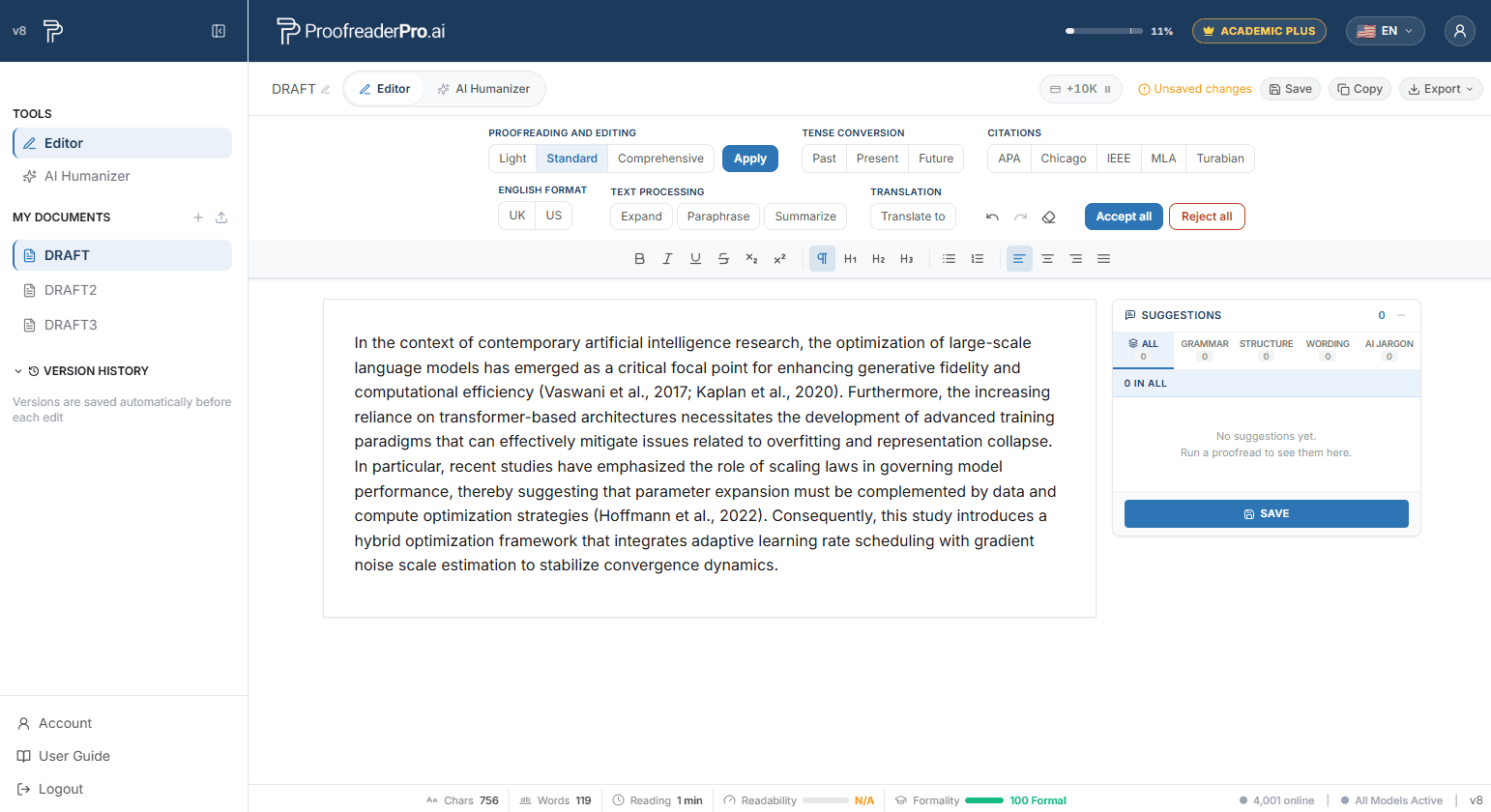
Setiap perubahan muncul sebagai saran di panel di sebelah kanan, dikelompokkan berdasarkan kategori. Klik sebuah saran untuk langsung menuju ke bagian tersebut di teks, lalu terima atau tolak secara individual.

Perubahan ditampilkan langsung sebagai penyisipan (garis bawah hijau) dan penghapusan (coretan merah), gaya Word.
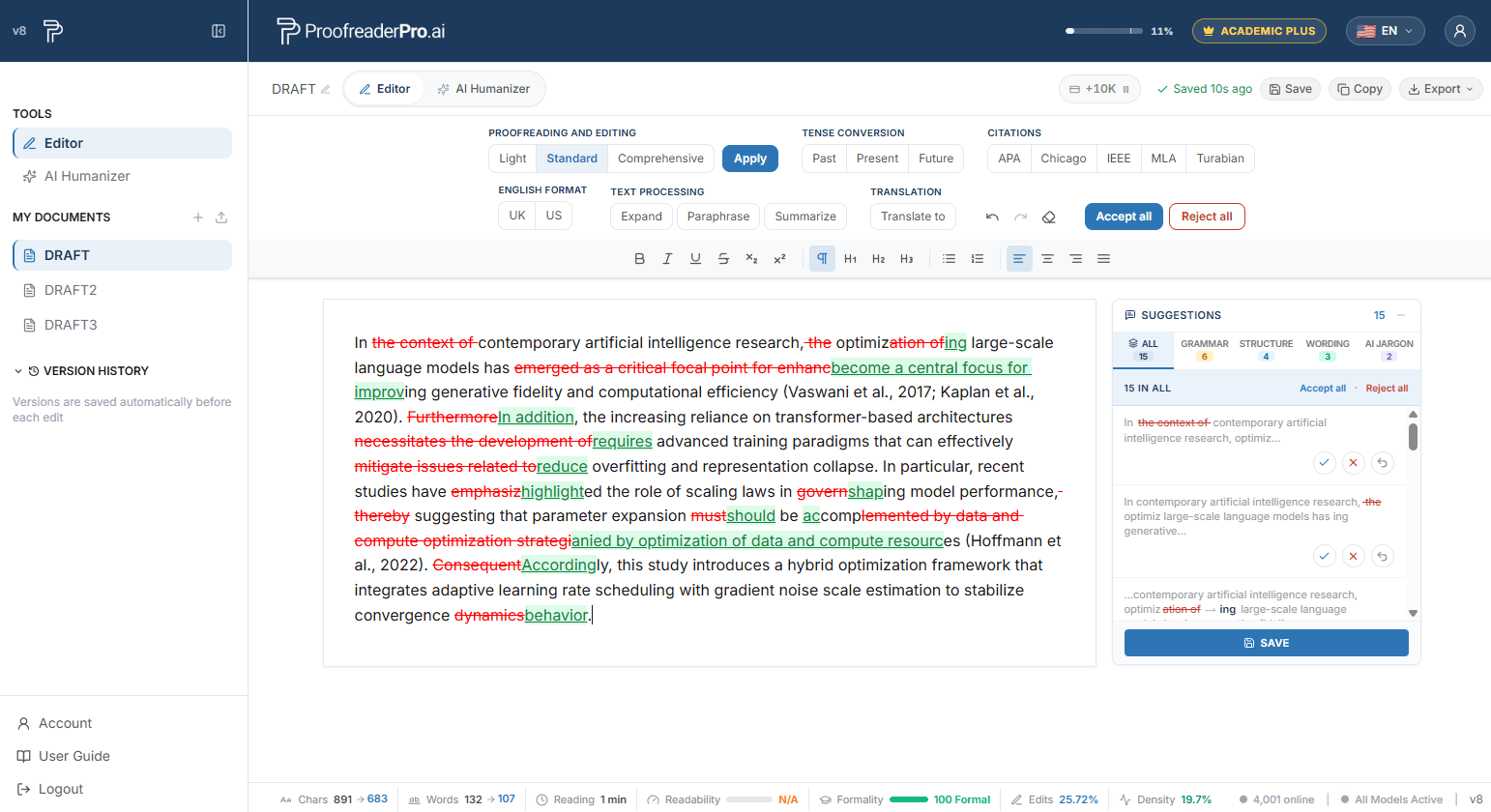
Pilih Past, Present, atau Future di bawah Tense pada toolbar. Semua tenses di seluruh teks akan disesuaikan secara otomatis, dan setiap perubahan dilacak.
Pilih APA, Chicago, IEEE, MLA, atau Turabian di bawah Sitasi. Semua sitasi dalam teks akan diubah ke format yang dipilih secara otomatis.
Beralih antara ejaan UK dan US dari toolbar. Teks akan diubah secara otomatis (color menjadi colour, organise menjadi organize, dan seterusnya).
Di bawah Pemrosesan Teks, tersedia tiga transformasi sekali klik:
Klik Translate to di bilah alat dan pilih bahasa target. Dokumen diterjemahkan langsung di tempatnya, dengan perubahan dilacak seperti edit lainnya.
Ekspor dokumen Anda sebagai Word atau PDF, baik versi bersih maupun dengan perubahan terlacak yang disertakan, siap untuk supervisor dan rekan penulis. Anda juga dapat menyalin teks beserta perubahan terlacaknya lalu menempelkannya langsung ke Microsoft Word.
Bilah di bagian bawah Editor menampilkan statistik dokumen secara langsung: karakter, kata, dan waktu baca, serta skor keterbacaan, kualitas penulisan, dan deteksi AI yang opsional. Aktifkan/nonaktifkan metrik opsional dari menu pengguna.
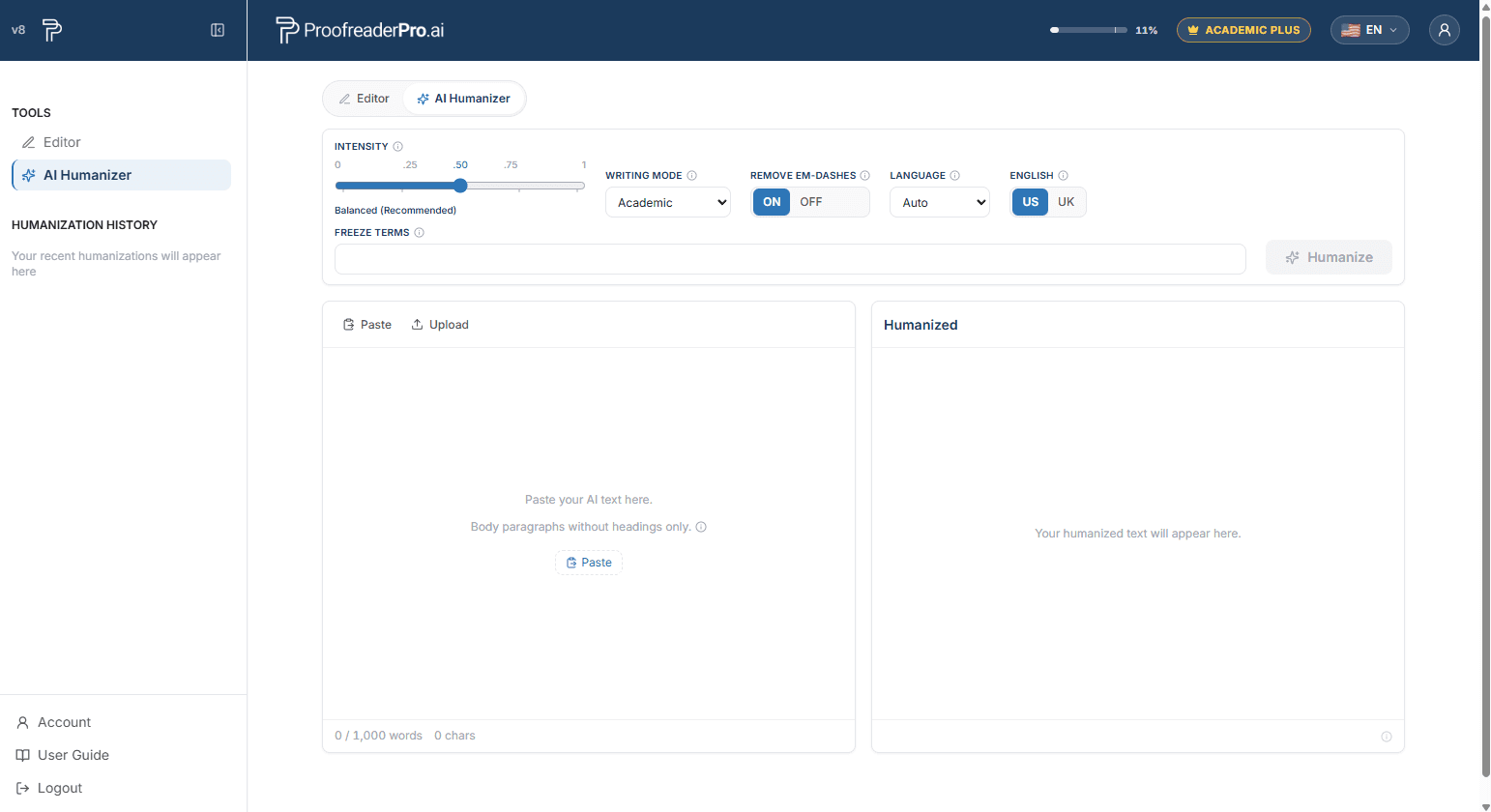
AI Humanizer menulis ulang teks yang dihasilkan AI menjadi tulisan yang alami dan terdengar seperti tulisan manusia, sambil mempertahankan makna, sitasi, dan istilah Anda. Baik draf Anda berasal dari ChatGPT, Claude, Gemini, atau alat penulisan AI lainnya, fitur humanizer menghilangkan pola yang biasanya ditandai oleh detektor AI dan menghasilkan teks yang dibaca seperti seolah ditulis oleh Anda.

Slider mengatur seberapa dalam teks ditulis ulang:
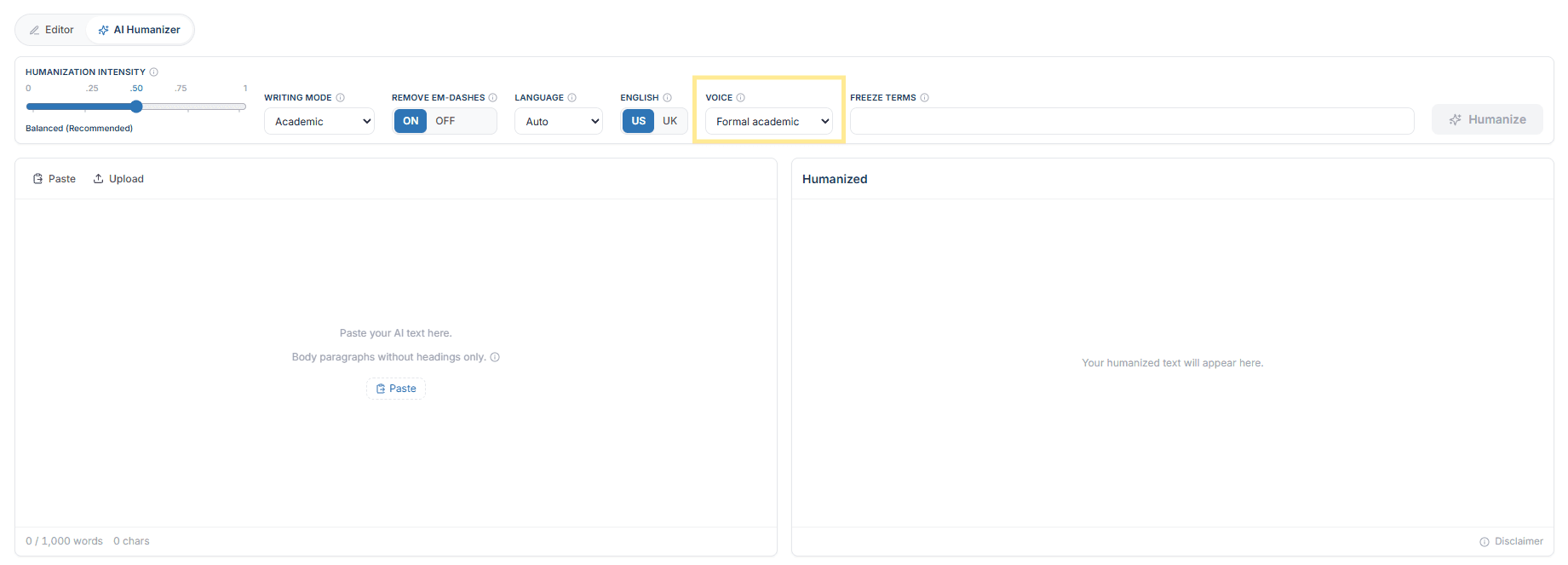
Kontrol Suara di samping mode penulisan menentukan orang gramatikal mana yang boleh digunakan oleh teks hasil humanisasi. Kontrol ini memfilter suara yang sudah dibawa draft Anda, jadi tulislah dalam suara yang dibutuhkan pengajuan Anda dan pilih opsi yang sesuai.
Pengaturan ini berlaku untuk seluruh humanisasi. Suara adalah fitur Academic Plus.
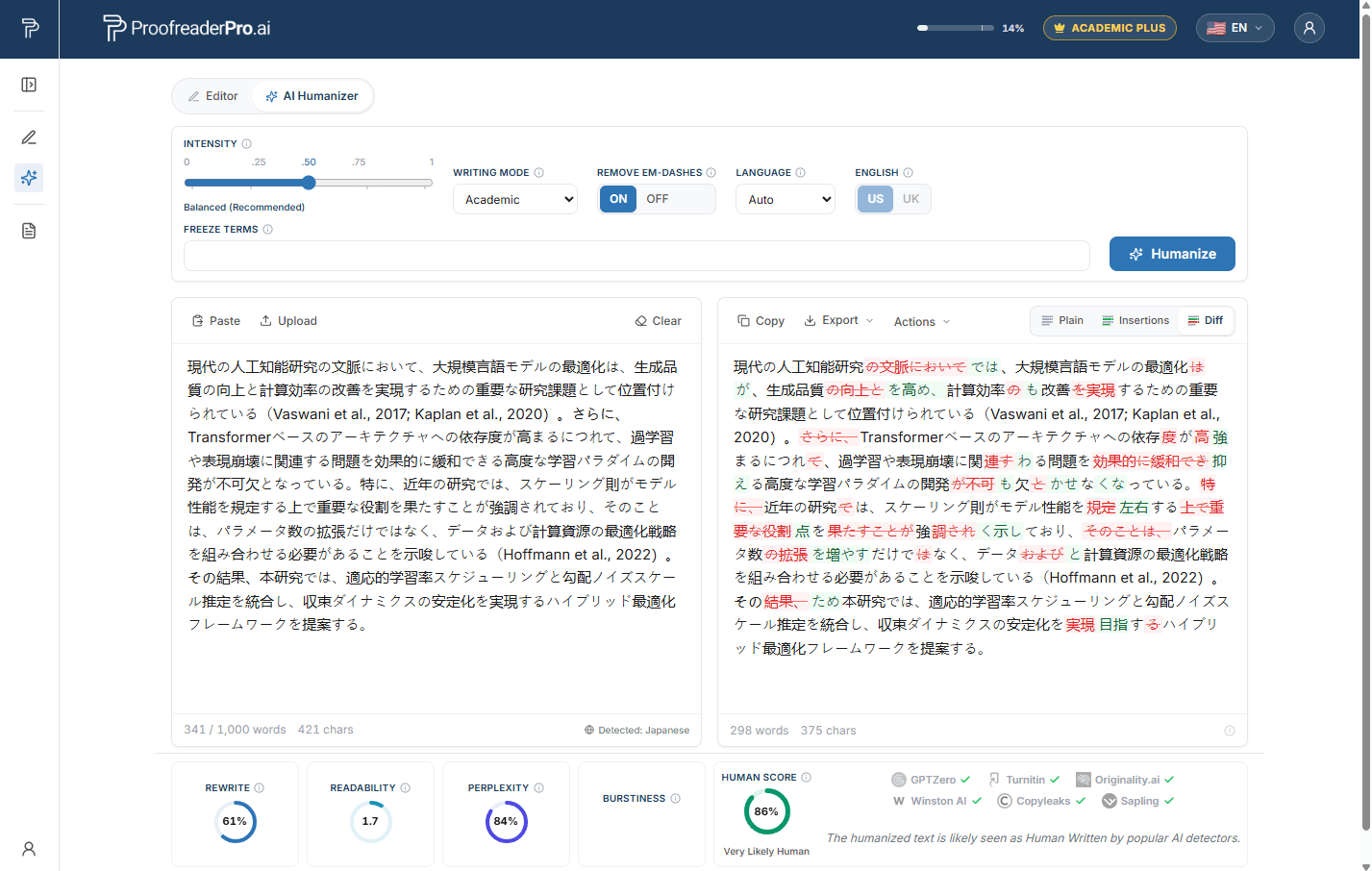
AI Humanizer berfungsi dalam 67 bahasa, mulai dari Spanyol, Arab, dan Tiongkok hingga Urdu, Hindi, dan Hausa. Bahasa Anda terdeteksi secara otomatis: saat bahasa non-Inggris terdeteksi, catatan kecil akan muncul di bawah panel input. Untuk mengabaikan deteksi, pilih bahasa dari menu tarik-turun Bahasa. Opsi ejaan US/UK hanya berlaku untuk teks bahasa Inggris dan dinonaktifkan untuk bahasa lain.
Istilah yang dibekukan (freeze terms) adalah kata atau frasa yang harus tetap persis sama seperti yang tertulis, karakter demi karakter. Istilah ini dibuat untuk penulisan akademik dan teknis: nama penulis, sitasi dalam teks, statistik yang dilaporkan seperti p < 0.05, rumus kimia, serta istilah khusus bidang yang tidak boleh diparafrasekan.
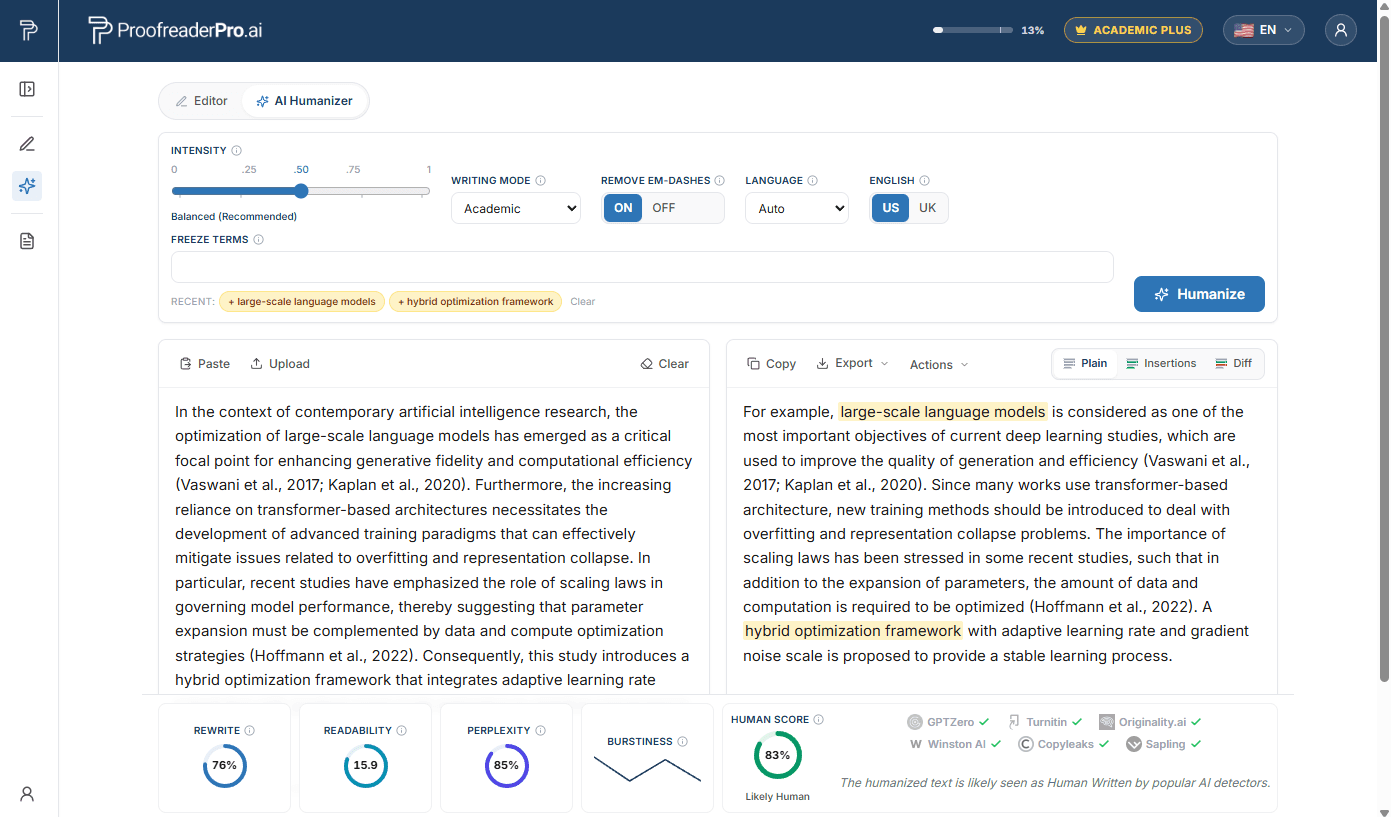
Penulis konten menghadapi masalah yang berbeda: peringkat hasil penelusuran bergantung pada frasa kata kunci yang tetap utuh setelah proses penulisan ulang. Dalam mode Blog/SEO, kolom ini menjadi kata kunci SEO. Tambahkan kata kunci utama, kata kunci sekunder, dan kata kunci long-tail Anda, dan AI Humanizer akan mempertahankan setiap kata kunci tersebut persis seperti yang Anda tulis saat menulis ulang teks di sekitarnya, sehingga artikel yang sudah di-humanize tetap dioptimalkan untuk kueri yang Anda targetkan.
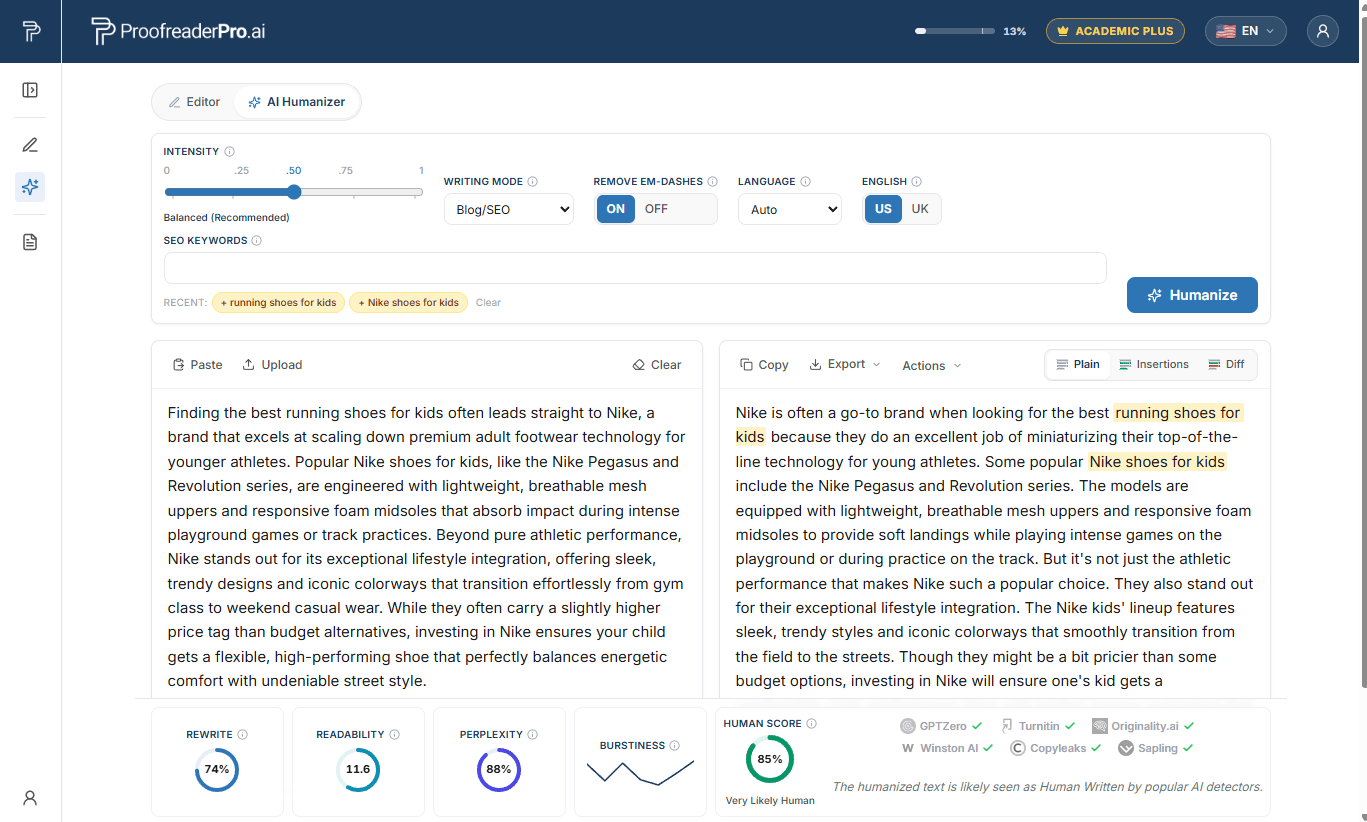
Panel output memiliki tiga tampilan:
Di bawah panel, bilah metrik menampilkan Human Score Anda beserta persentase penulisan ulang, keterbacaan, perplexity, dan burstiness. Arahkan kursor ke ikon info untuk penjelasan tiap metrik dalam bahasa yang mudah dipahami.
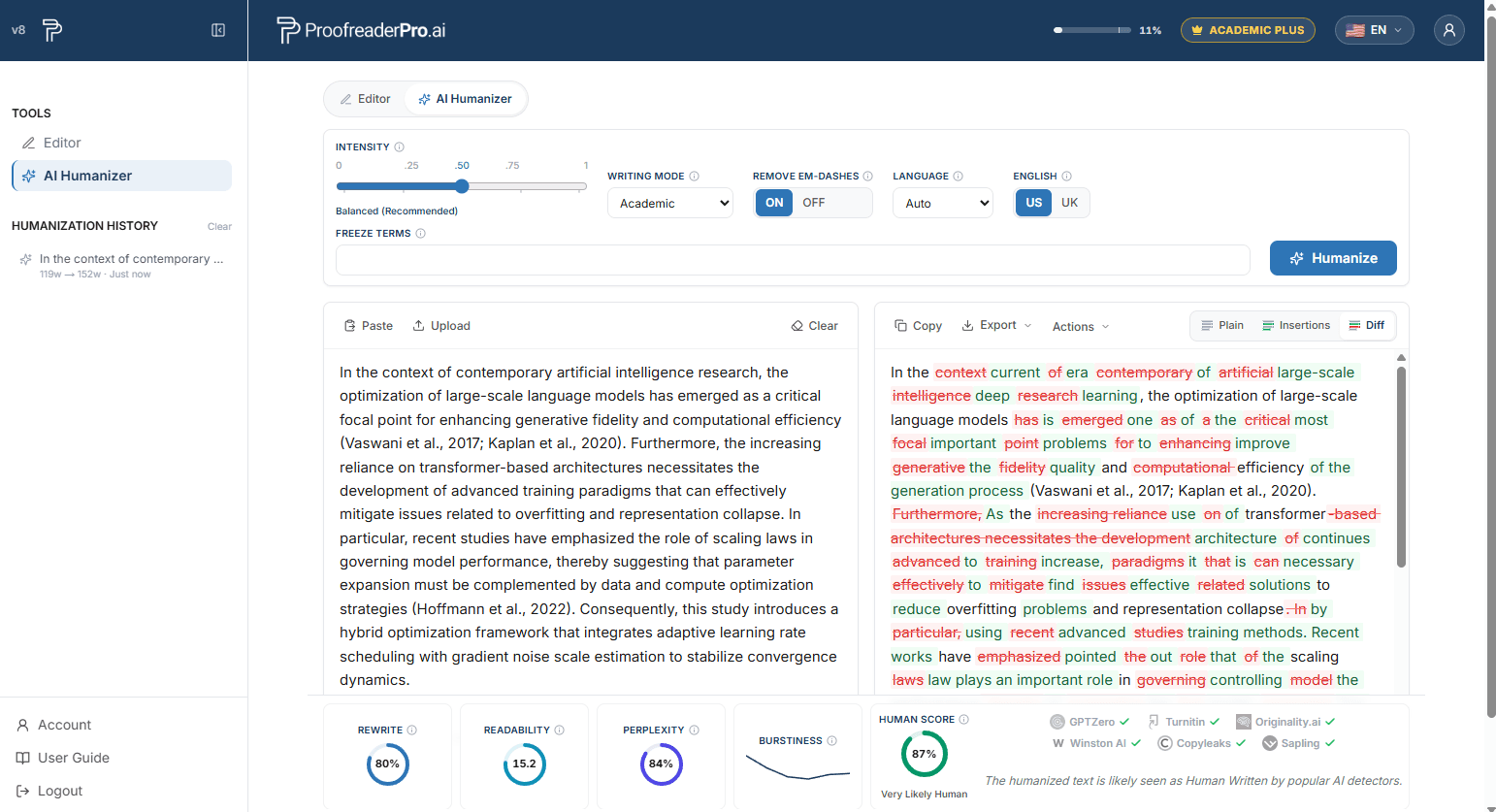
Gunakan Copy untuk salin cepat hasil dalam mode plain ke papan klip. Menu Ekspor menyediakan Word dan PDF (bersih atau dengan perubahan yang dilacak), teks biasa, dan HTML. Selain itu, Copy as Markdown dan Copy as HTML menghasilkan paragraf yang siap CMS untuk WordPress, Ghost, dan editor serupa.
Jalankan terbaru Anda tercantum di panel samping saat Anda berada di tab Humanizer. Klik salah satu entri untuk memulihkan run tersebut, termasuk input, output, dan pengaturannya. Riwayat disimpan hanya di perangkat Anda.
Jawaban cepat untuk tugas umum. Setiap jawaban sengaja dibuat singkat; bagian di atas mencakup setiap fitur secara rinci.
Bagaimana cara saya melakukan proofread pada teks saya?
Tempelkan teks Anda ke Editor, pilih Light, Standard, atau Comprehensive di bawah Proofreading and Editing, lalu klik Apply. Perubahan akan muncul sebagai tracked changes agar Anda dapat menerima atau menolaknya.
Bagaimana cara memilih tingkat kedalaman pengeditan yang tepat?
Gunakan Light hanya untuk tata bahasa, ejaan, dan tanda baca (dan untuk teks yang sudah di-humanize), Standard untuk tata bahasa plus kejelasan dan alur, serta Comprehensive untuk penulisan ulang terdalam. Edit kurang dari 600 kata per sekali proses agar kualitas terbaik.
Bagaimana cara memformat sitasi?
Pilih APA, Chicago, IEEE, MLA, atau Turabian di bagian Sitasi pada bilah alat. Semua sitasi dalam teks akan secara otomatis dikonversi ke gaya yang dipilih.
Bagaimana cara mengubah tenses?
Pilih Past, Present, atau Future di bawah Tense Conversion pada toolbar. Tenses disesuaikan di seluruh teks, dengan setiap perubahan dicatat.
Bagaimana cara beralih antara Bahasa Inggris UK dan Bahasa Inggris AS?
Klik UK atau US di bawah English Format. Ejaan dan konvensi diubah secara otomatis (colour menjadi color, organise menjadi organize).
Bagaimana cara memparafrase, memperluas, atau merangkum teks?
Gunakan tombol sekali klik di bawah Pemrosesan Teks: Parafrase menulis ulang dengan mempertahankan makna, Perluas menambahkan detail pendukung, dan Ringkas meringkas teks menjadi poin-poin utamanya.
Bagaimana cara menerjemahkan dokumen saya?
Klik Terjemahkan ke di bilah alat dan pilih bahasa target. Dokumen diterjemahkan langsung di tempatnya, dengan perubahan dilacak seperti setiap pengeditan lainnya.
Bagaimana cara melihat perubahan yang dilacak?
Perubahan ditampilkan secara inline, gaya Word: sisipan dengan garis bawah hijau dan penghapusan dengan coretan merah. Panel saran di sebelah kanan mencantumkan setiap perubahan, dikelompokkan ke dalam tab Semua, Tata Bahasa, Struktur, Pemilihan Kata, dan AI Jargon.
Bagaimana cara menerima atau menolak perubahan?
Klik satu perubahan lalu gunakan tombol pop-up Terima atau Tolak, sorot bagian untuk menangani semuanya sekaligus, atau gunakan Terima Semua / Tolak Semua di bilah alat. Panel saran menawarkan kontrol yang sama pada setiap kartu edit.
Bagaimana cara mengekspor dokumen saya dengan perubahan terlacak ke Word?
Buka Ekspor dan pilih Word dengan perubahan terlacak. File .docx akan terbuka di Microsoft Word dengan perubahan terlacak bawaan yang dapat ditinjau oleh supervisor dan rekan penulis. Ekspor Word dan PDF yang bersih juga tersedia, dan Anda dapat menyalin teks beserta perubahan terlacaknya langsung ke Word.
Bagaimana cara mengunggah dokumen?
Klik Upload di Dasbor lalu pilih file .docx, .pdf, atau .txt hingga 4 MB. Unggahan dokumen tersedia di paket berbayar.
Bagaimana cara menyimpan pekerjaan saya dan memulihkan versi sebelumnya?
Klik Simpan di Editor. Cuplikan juga diambil sebelum setiap proses AI; buka Riwayat Versi di panel samping dan klik Pulihkan pada versi atau lari sebelumnya.
Bagaimana cara mengganti nama atau menghapus dokumen?
Kedua tindakan ini ada di daftar dokumen Dashboard: gunakan kontrol ganti nama untuk mengubah judul, atau kontrol hapus untuk menghapus dokumen secara permanen.
Bagaimana cara memanusiakan teks AI?
Buka AI Humanizer dari panel samping, tempelkan teks yang dibantu AI atau unggah file .docx atau .txt, atur intensitas dan mode penulisan, lalu klik Humanize. Proses standar biasanya memakan waktu 15 hingga 45 detik.
Bagaimana cara mengatur tingkat intensitas humanisasi?
Seret penggeser melintasi lima level: Mild, Mild+, Balanced, Strong, dan Aggressive. Balanced adalah rekomendasi kompromi terbaik antara keterbacaan dan penurunan skor AI; Aggressive menurunkan skor AI paling besar.
Bagaimana cara memilih mode penulisan?
Pilih Academic untuk tesis dan karya ilmiah (sitasi dipertahankan, singkatan diperluas), Corporate untuk gaya bisnis yang lebih rapi, Creative untuk prosa yang lebih hidup, atau Blog/SEO untuk konten web dengan perlindungan kata kunci.
Bagaimana cara memastikan istilah tertentu tidak diubah?
Tambahkan istilah beku: ketikkan sebuah istilah lalu tekan Enter atau koma, hingga maksimal 10 per sesi. Setiap istilah harus muncul di teks input Anda. Istilah beku tetap persis sama karakter demi karakter dan ditandai dengan warna ambar pada hasil.
Bagaimana cara melindungi kata kunci SEO?
Beralih ke mode Blog/SEO, dan kolom freeze-terms menjadi kata kunci SEO. Tambahkan hingga 10 kata kunci, dan AI Humanizer mempertahankan setiap kata kunci tersebut persis seperti yang Anda tulis saat menulis ulang teks di sekitarnya.
Bagaimana cara melakukan humanisasi teks non-Inggris?
Cukup tempelkan: bahasa terdeteksi secara otomatis di seluruh 67 bahasa, dan sebuah catatan muncul di bawah panel input. Untuk menimpa deteksi, pilih bahasa dari menu dropdown Bahasa.
Bagaimana cara menghapus tanda pisah panjang (em dash) dari teks saya?
Aktifkan toggle em-dash di atas panel input sebelum menjalankan proses. Tanda pisah em-dash digantikan dengan tanda baca standar sebagai bagian dari penulisan ulang.
Bagaimana cara memeriksa Human Score saya?
Jalankan satu kali pemindaian dan baca bilah metrik di bawah panel output: Human Score Anda ditambah persentase penulisan ulang, keterbacaan, perplexity, dan burstiness. Arahkan kursor ke ikon info untuk penjelasan dengan bahasa yang lebih sederhana.
Bagaimana cara membandingkan hasil dengan input saya?
Ubah panel output ke Tampilan Diff untuk perbandingan penuh dengan penanda Insertions dan deletions, atau ke Tampilan Insertions untuk hanya menyoroti bagian yang baru ditulis.
Bagaimana cara menjalankan penyesuaian tahap kedua yang lebih kuat?
Klik Re-humanize untuk menjalankan output melalui satu pass tambahan. Setiap pass menggunakan kata dari kuota bulanan Anda.
Bagaimana cara mengekspor teks yang telah di-humanisasi?
Gunakan Salin untuk hasil Plain, atau menu Ekspor untuk Word dan PDF (bersih atau dengan perubahan terlacak), teks biasa, dan HTML. Salin sebagai Markdown dan Salin sebagai HTML menghasilkan paragraf yang siap CMS untuk WordPress, Ghost, dan editor serupa.
Bagaimana cara memulihkan humanisasi sebelumnya?
Di tab Humanizer, buka riwayat di panel samping lalu klik entri apa pun untuk memulihkan eksekusi tersebut, termasuk input, output, dan pengaturannya. Riwayat hanya disimpan di perangkat Anda.
Buka panel samping dan klik Account di bagian bawah. Dari sana, Anda dapat mengelola paket dan penagihan, mengubah kata sandi, serta meninjau penggunaan kata bulanan Anda.
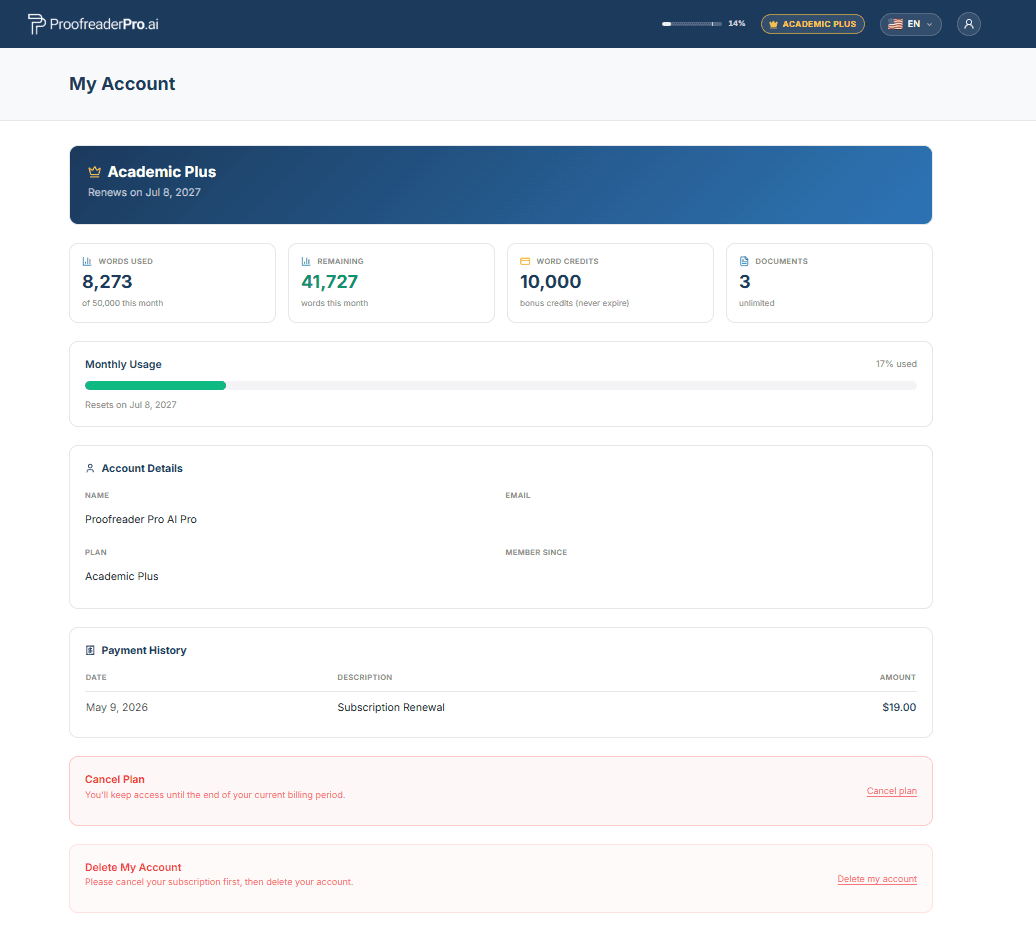
Di halaman Akun, pilih Hapus akun saya. Tindakan ini akan menghapus akun, dokumen, dan data pribadi Anda secara permanen, serta tidak dapat dibatalkan. Jika Anda memiliki langganan aktif, batalkan terlebih dahulu agar tidak ada biaya tambahan lebih lanjut.
Klik ikon globe di pojok kanan atas lalu pilih bahasa yang Anda inginkan. Seluruh antarmuka akan beralih ke bahasa yang dipilih.
Buka menu pengguna di sudut kanan atas lalu pilih Support, atau hubungi kami langsung di hello@ProofreaderPro.ai. Kami membalas dalam waktu 1 hari kerja.
Pruf-baca, buat tulisan Anda lebih natural, parafrase, dan terjemahkan penulisan akademik Anda di satu tempat. Mulai gratis, tanpa kartu kredit.
Mulai Gratis