
ویژگیها
بازبین AIانسانساز متن با AIابزار بازنویسی AIخلاصهساز AIمترجم AIابزارهای رایگانسوالات متداولراهنمای کاربروبلاگقیمتگذاریتماسثبتنام، رایگانورودبا ثبت نام، با شرایط و ضوابط و سیاست حریم خصوصی ما موافقت میکنید.
ویرایشگر
هوشمندساز AI
سوالات متداول راهنما
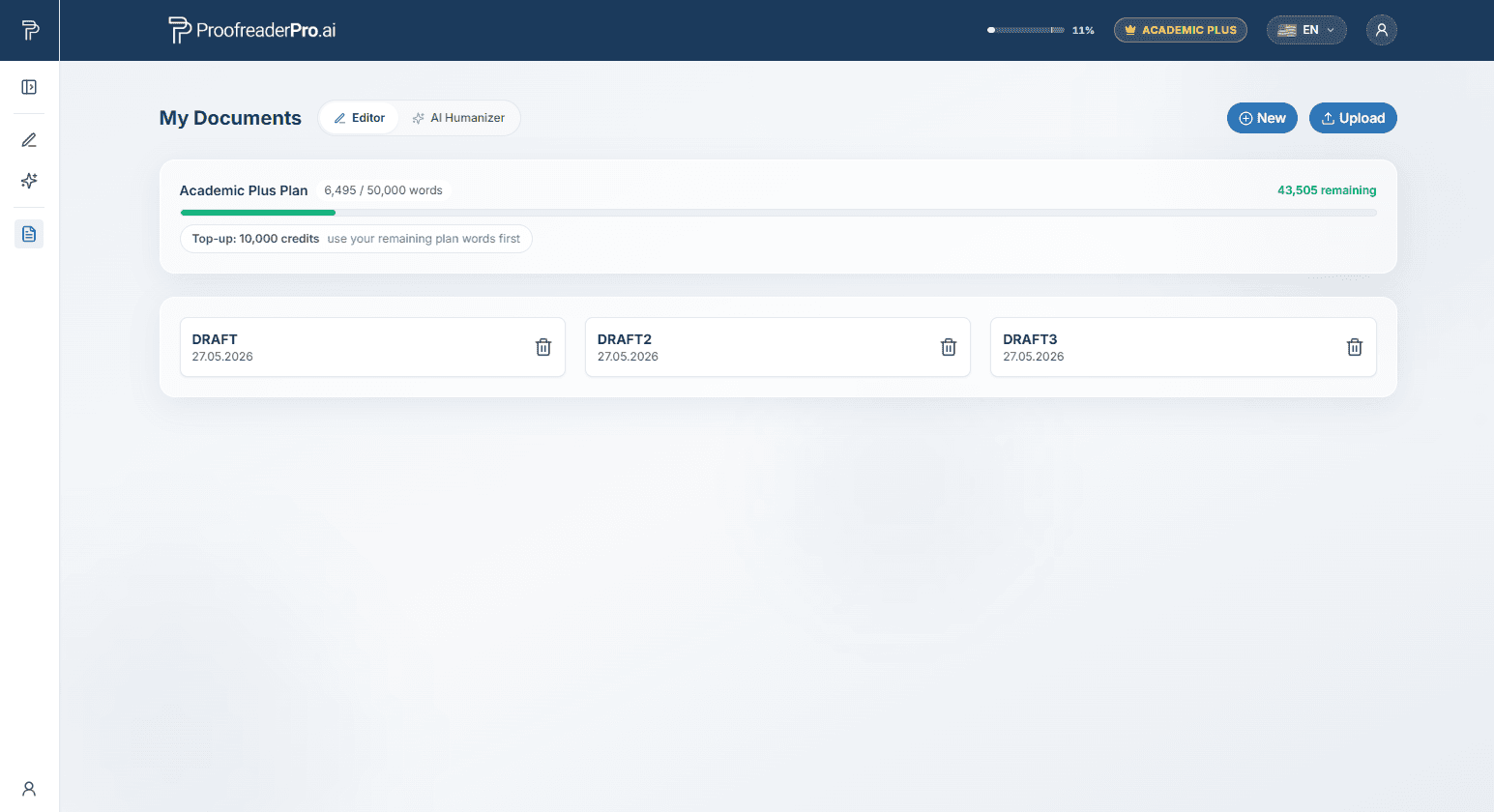
داشبورد دو ابزار دارد که هر دو از پنل کناری سمت چپ در دسترس هستند:
پنل کناری را میتوانید باز نگه دارید یا آن را در نوار آیکن باریک جمع کنید. از آیکن پنل در گوشهی بالایی آن برای جابهجایی بین این دو حالت استفاده کنید. همچنین، این پنل اسناد شما، تاریخچهی انسانیسازی شما (در تب Humanizer) و لینکهایی به Account، این راهنمای کاربر و Log Out را در پایین نمایش میدهد.
کار شما هنگام تایپ بهصورت خودکار ذخیره میشود. همچنین پیش از هر ویرایشِ AI، یک نسخه از سند شما ذخیره میگردد: در پنل کناری گزینه Version History را باز کنید و روی آیکن بازیابی کنار هر نسخه کلیک کنید تا آن را برگردانید.
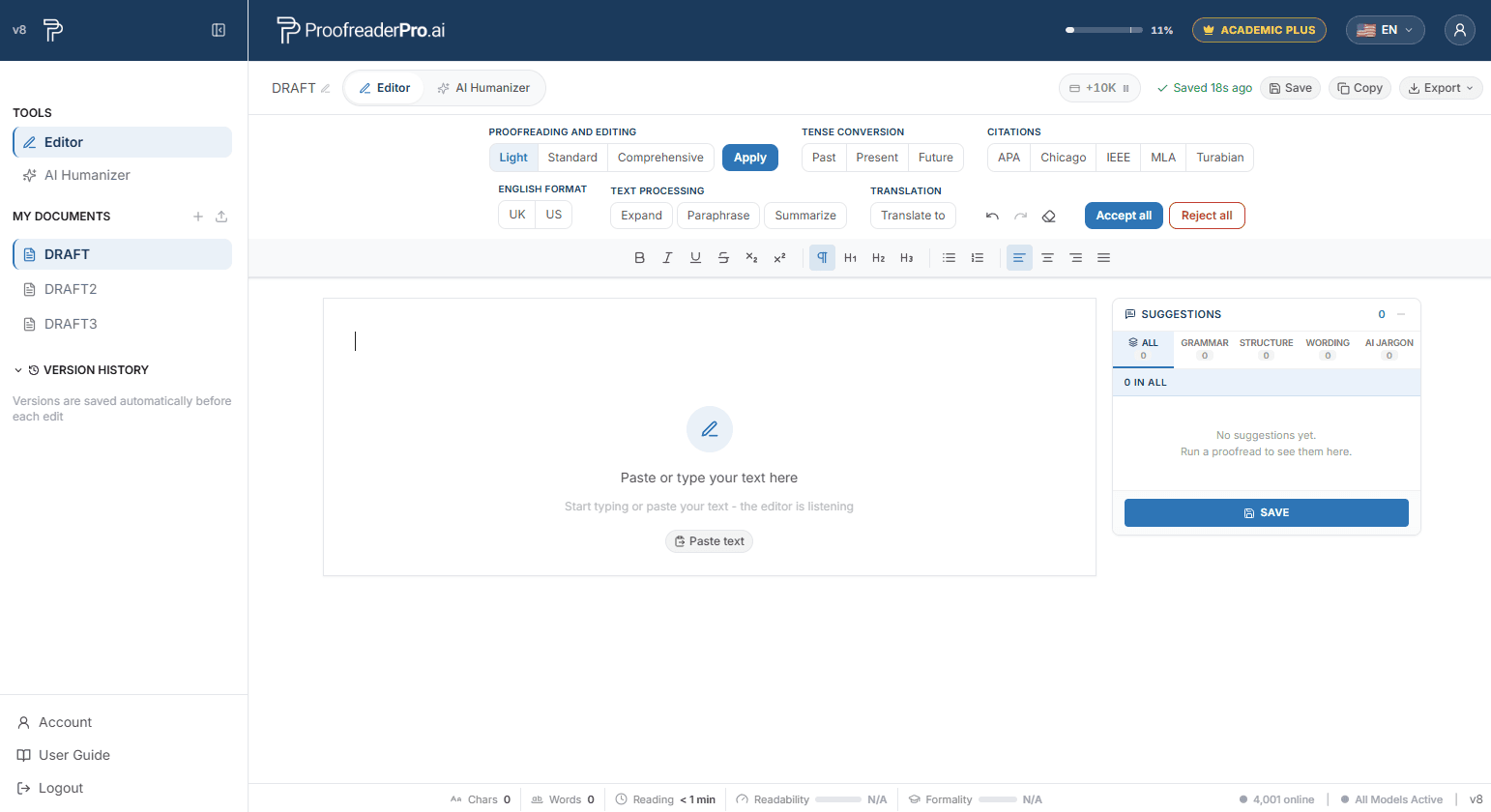
سه عمق از نوار ابزار در دسترس است. برای دستیابی به نتایج باکیفیتتر، در هر بار کمتر از 600 کلمه را ویرایش کنید.
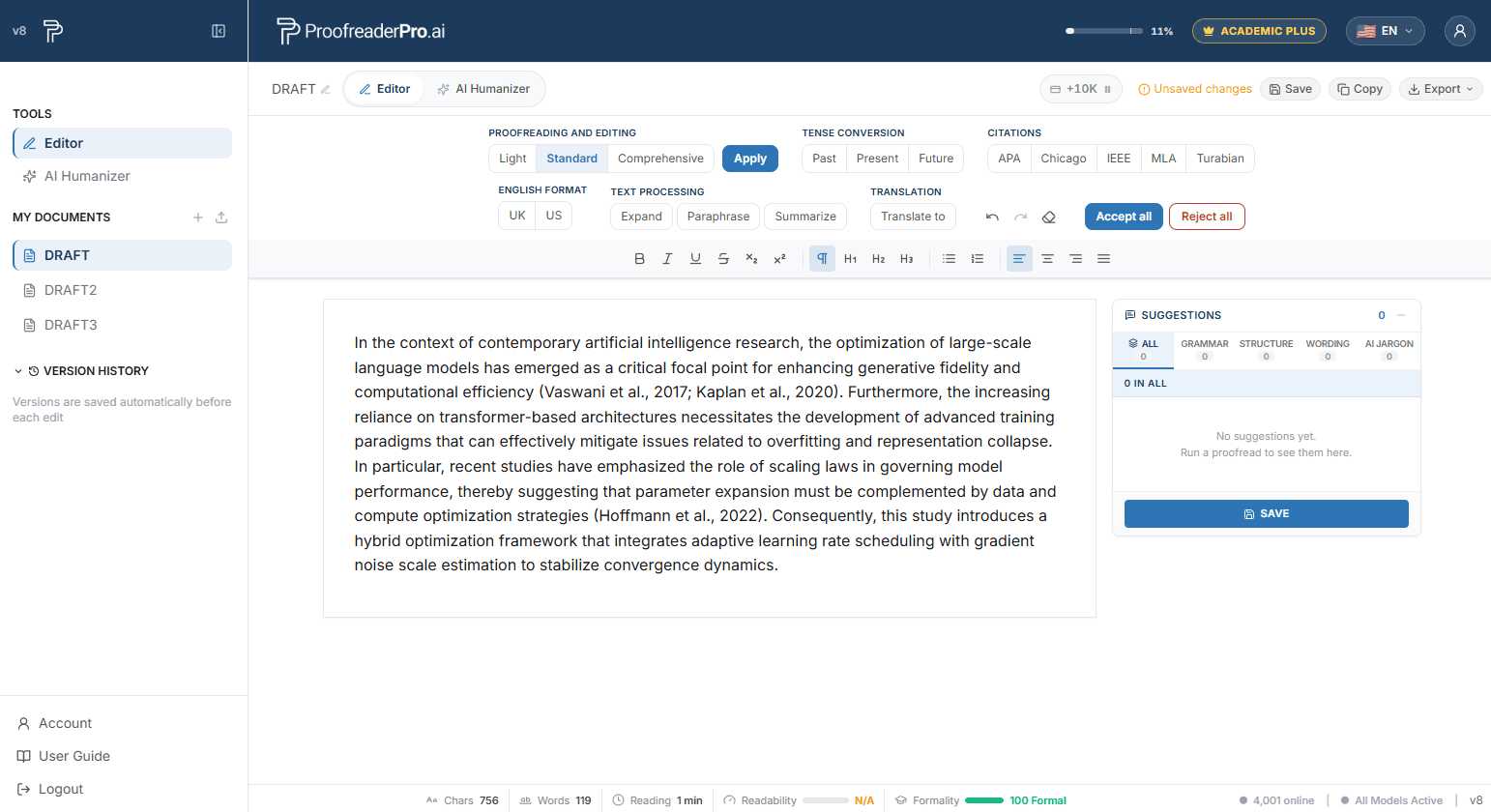
هر ویرایش بهصورت یک پیشنهاد در پنل سمت راست نمایش داده میشود و بر اساس دستهبندی گروهبندی میگردد. روی یک پیشنهاد کلیک کنید تا به همان بخش در متن بروید، سپس آن را بهصورت جداگانه بپذیرید یا رد کنید.
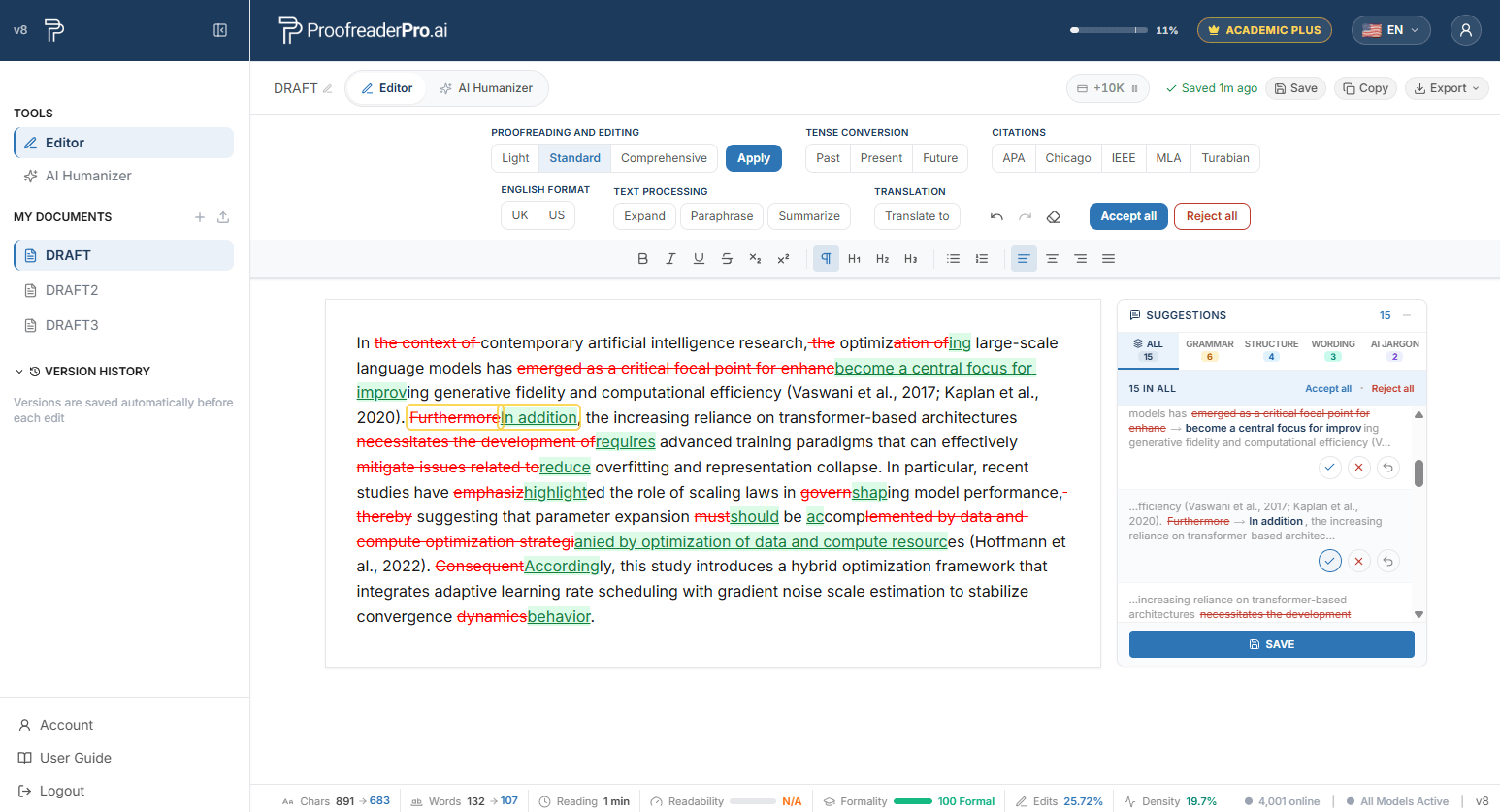
ویرایشها بهصورت درجها (زیرخط سبز) و حذفها (خطخورده قرمز) بهصورت درونخطی نمایش داده میشوند؛ سبک Word.
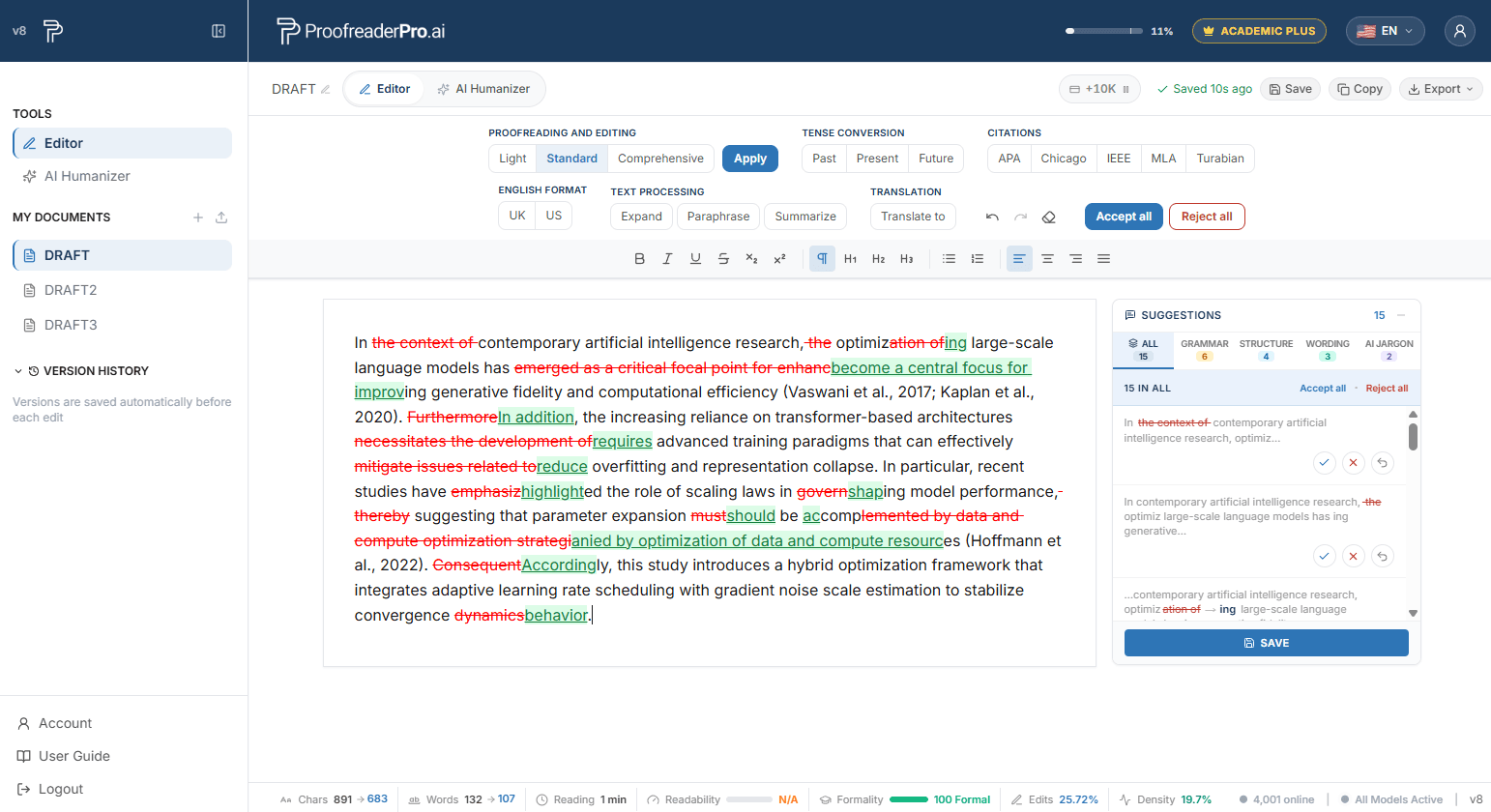
زیر Tense در نوار ابزار، Past، Present یا Future را انتخاب کنید. همه زمانها در سراسر متن بهصورت خودکار تنظیم میشوند و هر تغییر ثبت و پیگیری میشود.
در بخش Citations، APA، Chicago، IEEE، MLA یا Turabian را انتخاب کنید. همه ارجاعات داخلمتنی بهطور خودکار به قالب انتخابشده تبدیل میشوند.
از نوار ابزار بین املای بریتانیایی (UK) و آمریکایی (US) جابهجا شوید. متن بهصورت خودکار تبدیل میشود (colour به color، organise به organize و موارد مشابه).
در بخش پردازش متن، سه تبدیل یککلیک در دسترس هستند:
روی Translate to در نوار ابزار کلیک کنید و یک زبان مقصد انتخاب کنید. سند در همانجا ترجمه میشود و تغییرات آن مانند هر ویرایش دیگری ردیابی میگردد.
سند خود را بهصورت Word یا PDF صادر کنید، یا به شکل تمیز، یا همراه با تغییراتِ ثبتشده، تا برای سرپرستان و همکاران همنویس آماده باشد. همچنین میتوانید متن را همراه با تغییراتِ ثبتشده کپی کرده و آن را مستقیماً داخل Microsoft Word جایگذاری کنید.
نوار پایینِ Editor آمار زندهٔ سند را نشان میدهد: نویسهها، کلمات و زمان مطالعه، بهعلاوه امتیازهای اختیاریِ خوانایی، کیفیت نگارش و تشخیص AI. معیارهای اختیاری را از منوی کاربر فعال/غیرفعال کنید.
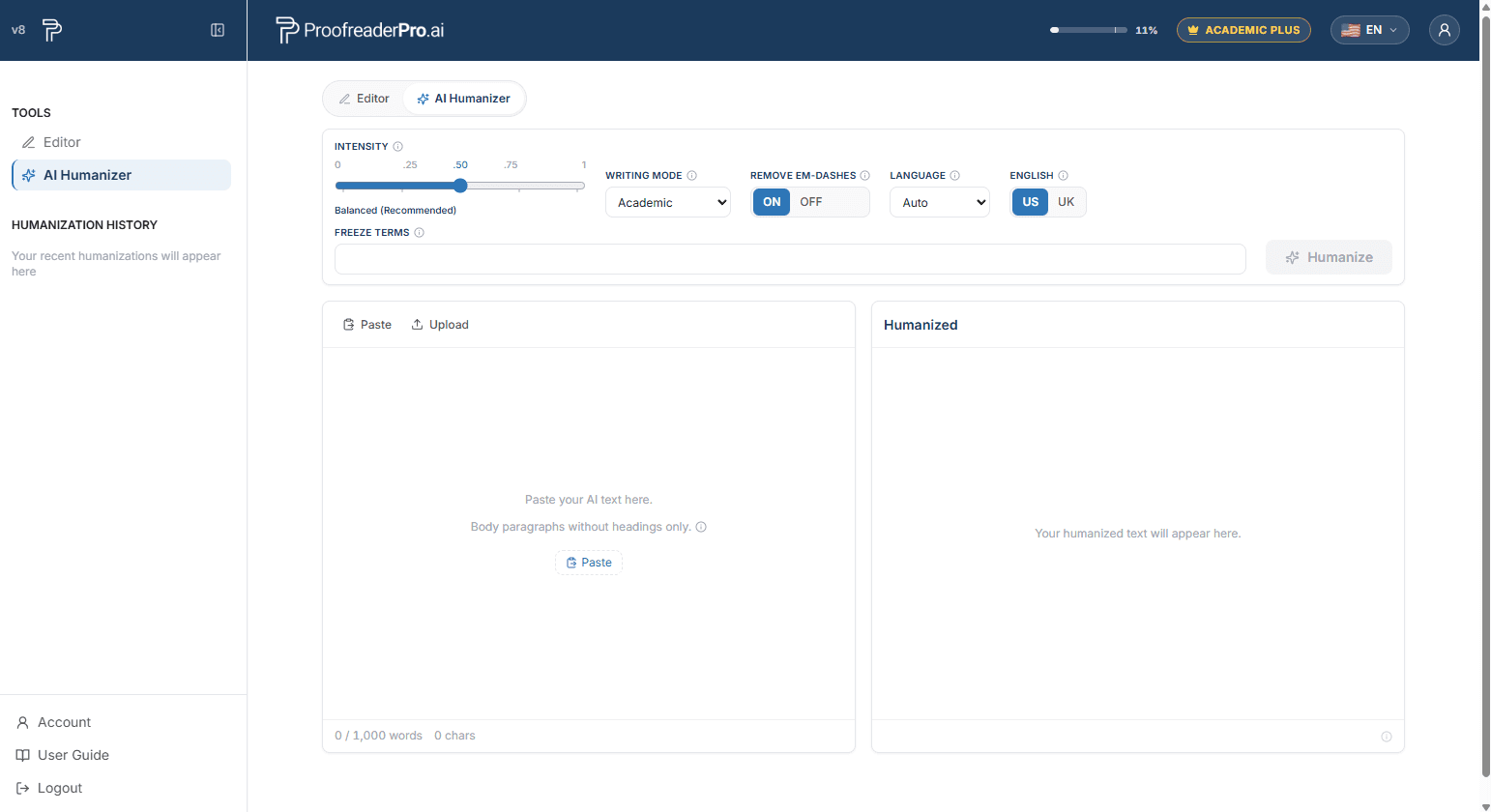
AI Humanizer متن تولیدشده توسط هوش مصنوعی را طوری بازنویسی میکند که مانند نگارش طبیعی و انسانی شود و در عین حال، مفهوم، استنادات و اصطلاحات شما را حفظ کند. فرقی ندارد پیشنویس شما را ChatGPT، Claude، Gemini یا هر ابزار نوشتاری مبتنی بر هوش مصنوعی دیگری تهیه کرده باشید؛ Humanizer الگوهایی را که توسط ابزارهای تشخیص AI علامتگذاری میشوند حذف میکند و متنی برمیگرداند که خواندنش مثل این است که خودتان نوشتهاید.
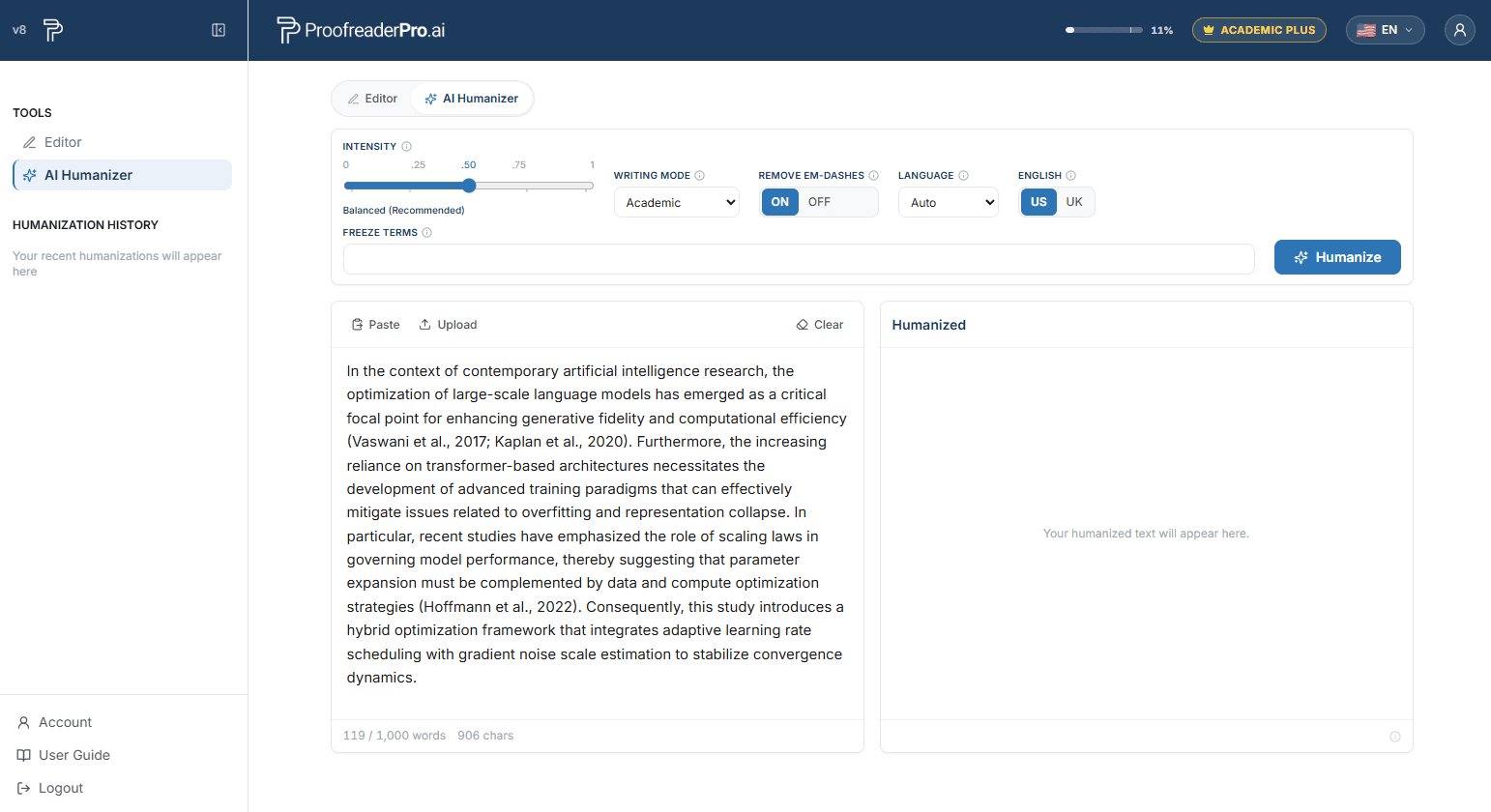
اسلایدر میزان بازنویسی عمیق متن را کنترل میکند:
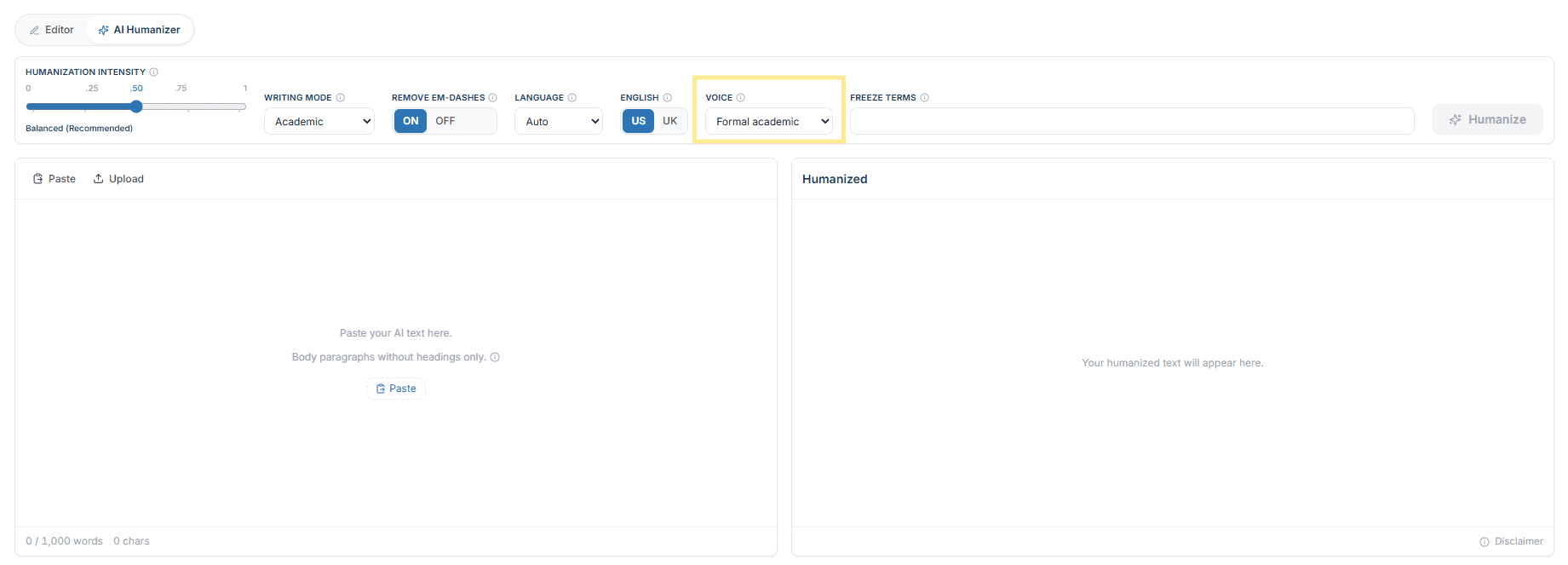
کنترل صدا در کنار حالت نوشتن تعیین میکند متنِ انسانیشده مجاز است از کدام شخصِ دستوری استفاده کند. این کنترل، صدایی را که پیشنویس شما از پیش دارد فیلتر میکند، بنابراین با صدایی بنویسید که ارسالِ شما به آن نیاز دارد و گزینهای را انتخاب کنید که با آن مطابقت دارد.
این تنظیم بر کل انسانیسازی اعمال میشود. صدا از ویژگیهای Academic Plus است.
انسانایزر (Humanizer) در ۶۷ زبان پشتیبانی میکند؛ از اسپانیایی، عربی و چینی گرفته تا اردو، هندی و هاوسا. زبان شما بهصورت خودکار تشخیص داده میشود: هنگامی که یک زبان غیرانگلیسی شناسایی شود، یک یادداشت کوچک زیر پنل ورودی نمایش داده میشود. برای نادیدهگرفتن تشخیص، زبان را از منوی کشویی Language انتخاب کنید. کلید تغییر املای US/UK فقط برای متن انگلیسی اعمال میشود و برای سایر زبانها غیرفعال است.
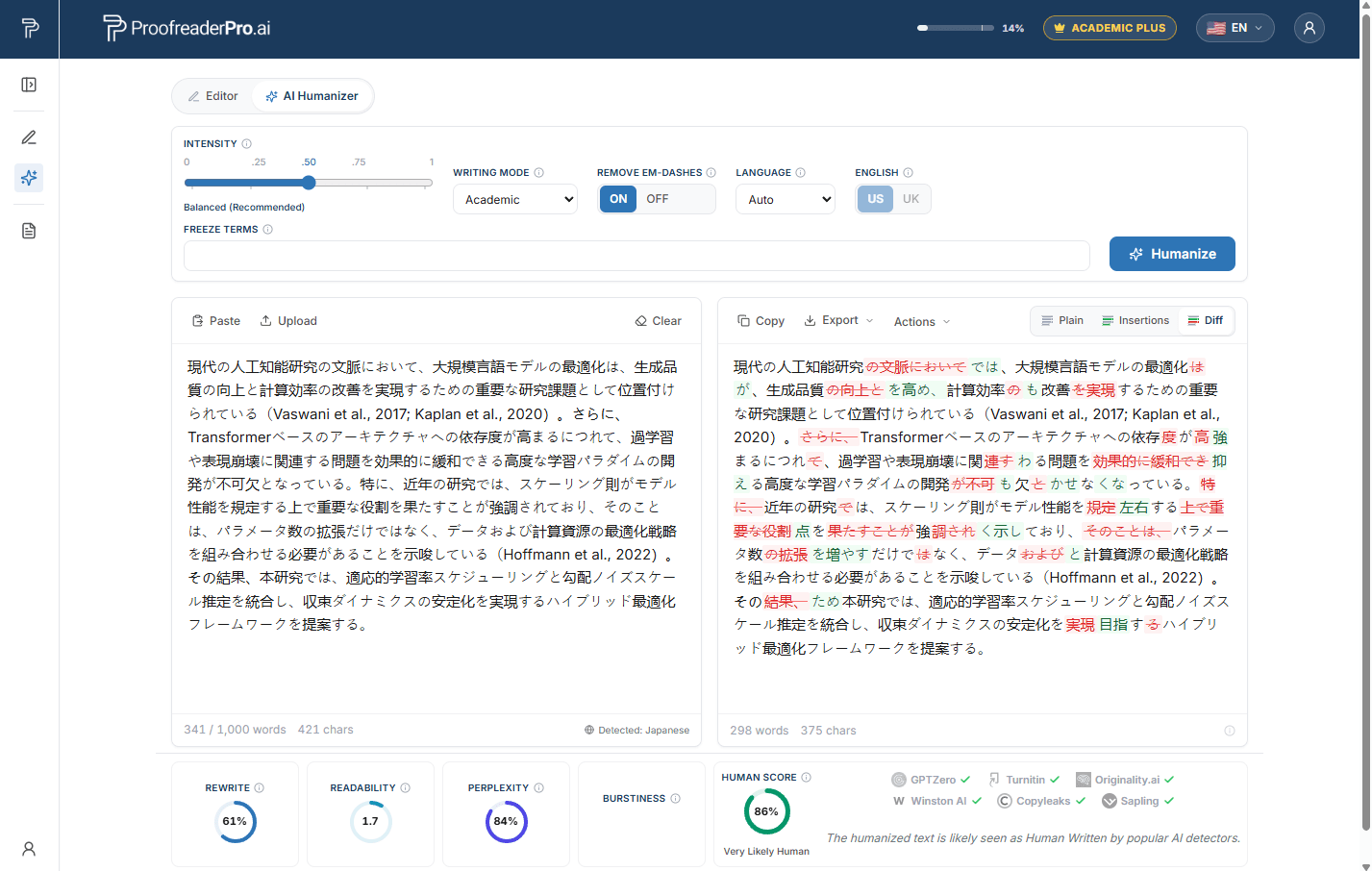
کلمات یا عباراتی که باید دقیقاً همانطور که نوشته شدهاند، کاراکر به کاراکر، توسط Humanizer حفظ شوند «Freeze terms» نام دارند. این موارد برای نگارش آکادمیک و فنی طراحی شدهاند: نام نویسندگان، استنادهای درونمتنی، آمارهای گزارششده مانند p < 0.05، فرمولهای شیمیایی، و اصطلاحات تخصصیِ حوزهای که نباید بازنویسی شوند.

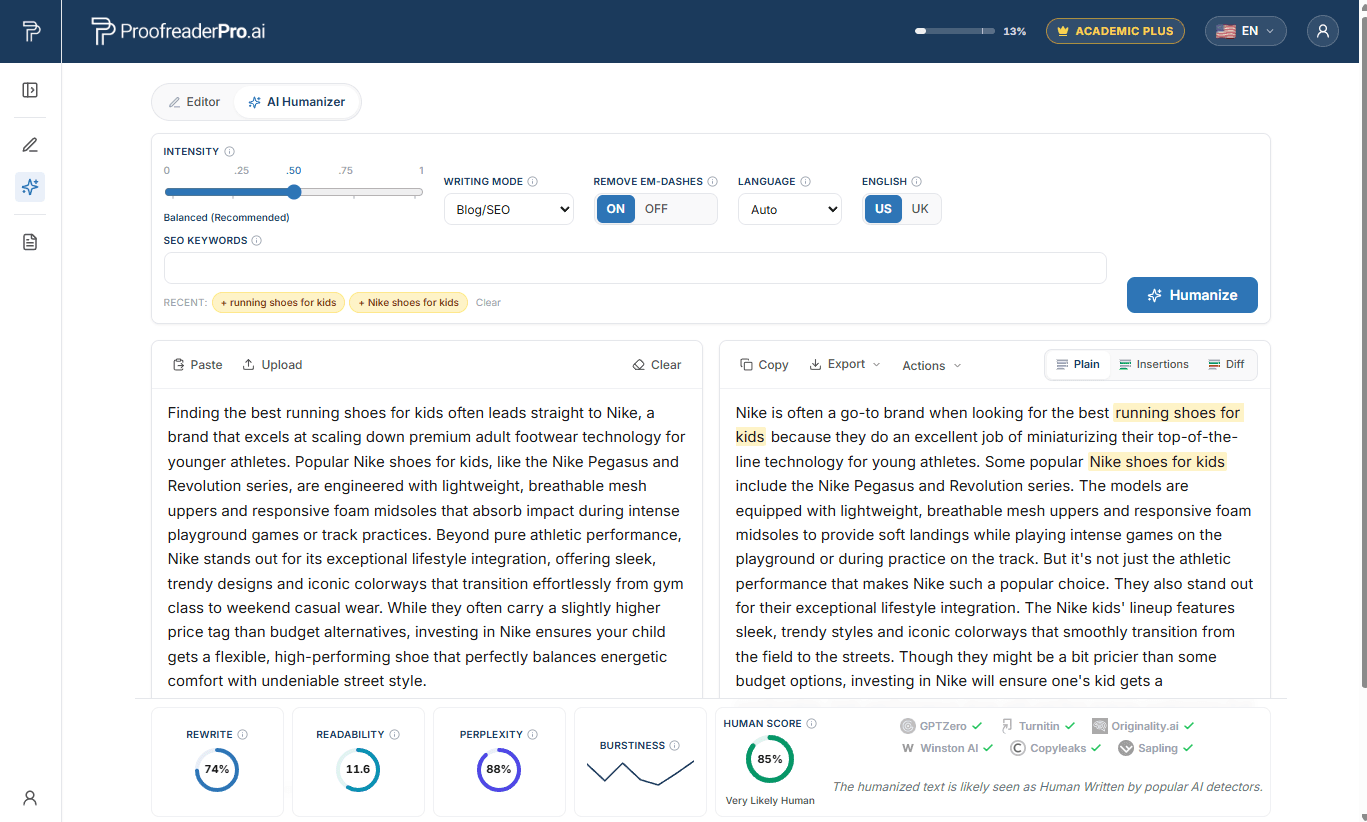
نویسندگان محتوا با یک مشکل متفاوت روبهرو هستند: رتبههای جستجو به این بستگی دارد که عبارتهای دقیق کلیدی پس از بازنویسی، بدون تغییر باقی بمانند. در حالت Blog/SEO، این فیلد به کلیدواژههای SEO تبدیل میشود. کلیدواژههای اصلی، ثانویه و long-tail خود را اضافه کنید و AI Humanizer هرکدام از آنها را دقیقاً همانطور که نوشتهاید حفظ میکند، در حالی که متن را حول آنها بازنویسی میکند؛ بنابراین مقاله انسانیسازیشده شما برای کوئریهایی که هدف گرفتهاید همچنان بهینه میماند.
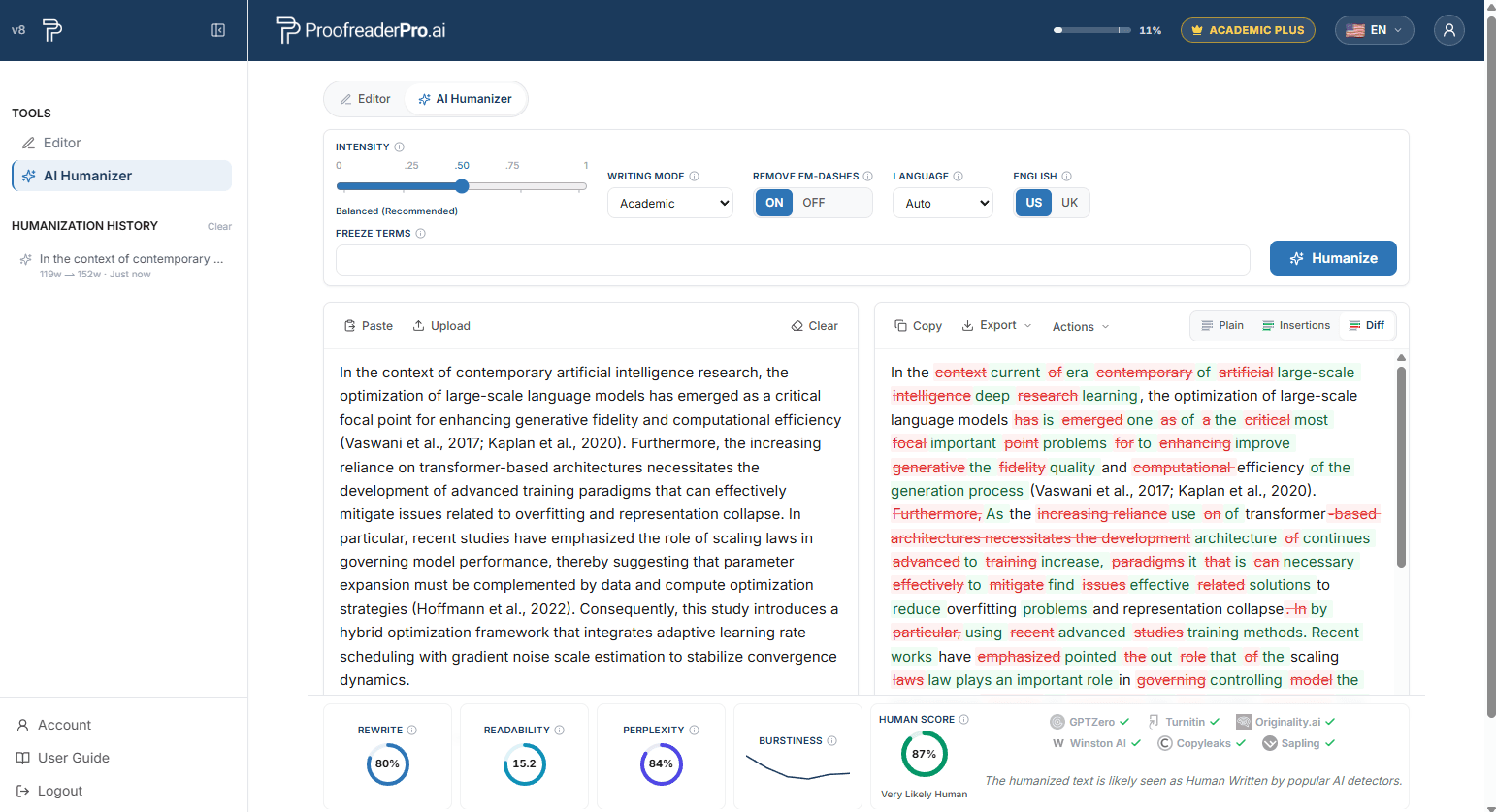
پنل خروجی دارای سه نمای است:
در پایین پنلها، نوار معیارها Human Score شما را همراه با درصد بازنویسی، خوانایی، پرپِلکسیته (perplexity) و بُرستینس (burstiness) نشان میدهد. برای توضیحی ساده و روان درباره هر معیار، روی آیکونهای اطلاعات نگه دارید.
برای کپی سریع نتیجهی Plain در کلیپبورد، از Copy استفاده کنید. در منوی Export گزینههای Word و PDF (پاک یا با تغییراتِ رهگیریشده)، متن ساده و HTML وجود دارد. همچنین، Copy as Markdown و Copy as HTML پاراگرافهایی آمادهی CMS تولید میکنند که برای WordPress، Ghost و ویرایشگرهای مشابه مناسب است.
روندهای اخیر شما در پنل کناری هنگام حضور در تب Humanizer نمایش داده میشوند. برای بازگردانی هر مورد، روی آن کلیک کنید؛ این کار شامل ورودی، خروجی و تنظیمات همان اجرا میشود. تاریخچه فقط روی دستگاه شما ذخیره میشود.
پاسخهای سریع برای کارهای رایج. هر پاسخ عمداً کوتاه است؛ بخشهای بالا تمام ویژگیها را بهتفصیل پوشش میدهند.
چگونه متن خود را بررسی و ویرایش کنم؟
متن خود را در Editor وارد کنید، در بخش Proofreading and Editing گزینه Light، Standard یا Comprehensive را انتخاب کنید و روی Apply کلیک کنید. ویرایشها بهصورت تغییرات ثبتشده (tracked changes) برای تأیید یا رد کردن توسط شما نمایش داده میشوند.
چگونه میتوانم عمق ویرایش مناسب را انتخاب کنم؟
فقط برای دستور زبان، املا و نشانهگذاری از Light استفاده کنید (و همچنین برای متنی که قبلاً انسانیسازی شده است). برای دستور زبان بهعلاوه شفافیت و روانی از Standard استفاده کنید. برای عمیقترین بازنویسی از Comprehensive استفاده کنید. برای بهترین کیفیت، در هر بار ویرایش کمتر از 600 کلمه را اصلاح کنید.
چگونه استنادها را قالببندی کنم؟
در نوار ابزار، از بخش Citations یکی از APA، Chicago، IEEE، MLA یا Turabian را انتخاب کنید. همه ارجاعات درونمتنی بهطور خودکار به سبک انتخابشده تبدیل میشوند.
چگونه زمان را تبدیل کنم؟
در نوار ابزار، زیر Tense Conversion یکی از گزینههای Past، Present یا Future را انتخاب کنید. زمانها در سراسر متن تنظیم میشوند و هر تغییر با جزئیات ثبت میگردد.
چگونه میتوانم بین انگلیسی بریتانیایی (UK) و انگلیسی آمریکایی (US) جابهجا شوم؟
روی UK یا US زیر English Format کلیک کنید. املا و قراردادها بهصورت خودکار تبدیل میشوند (colour به color، organise به organize).
چگونه متن را بازنویسی، گسترش یا خلاصه کنم؟
از دکمههای یککلیک زیر Text Processing استفاده کنید: Paraphrase بازنویسی میکند و در عین حال معنی را حفظ میکند، Expand جزئیات پشتیبان را اضافه میکند، و Summarize متن را به نکات کلیدی آن خلاصه میکند.
چگونه میتوانم سند خود را ترجمه کنم؟
روی Translate to در نوار ابزار کلیک کنید و زبان مقصد را انتخاب کنید. سند بهصورت مستقیم ترجمه میشود و تغییرات مانند هر ویرایش دیگری پیگیری میشوند.
چگونه میتوانم تغییرات ثبتشده را مشاهده کنم؟
ویرایشها به صورت درونخطی نمایش داده میشوند: سبک Word بهصورت Insertions با زیرخط سبز و Deletions با خطخورده قرمز است. پنل پیشنهادها در سمت راست، هر ویرایش را فهرست میکند و آنها را در تبهای All، Grammar، Structure، Wording و AI Jargon گروهبندی میکند.
چگونه میتوانم تغییرات را بپذیرم یا رد کنم؟
روی یک تغییر تکی کلیک کنید و از دکمههای پاپآپ پذیرش یا رد استفاده کنید. برای مدیریت همهچیز بهصورت یکجا، یک بخش را هایلایت کنید؛ یا از گزینههای پذیرش همه / رد همه در نوار ابزار استفاده کنید. پنل پیشنهادها همان کنترلها را برای هر کارت ویرایش ارائه میدهد.
چگونه میتوانم سند خود را با تغییراتِ ثبتشده (Tracked Changes) به Word صادر کنم؟
Export را باز کنید و Word را با تغییراتِ ثبتشده (Tracked changes) انتخاب کنید. فایل .docx در Microsoft Word با تغییراتِ ثبتشده (native) باز میشود تا سرپرستان و همنویسها بتوانند آن را بررسی کنند. خروجیهای تمیزِ Word و PDF نیز در دسترس هستند و میتوانید متن را همراه با تغییراتِ ثبتشده مستقیماً در Word کپی کنید.
چگونه میتوانم یک سند را آپلود کنم؟
روی Upload در داشبورد کلیک کنید و یک فایل .docx، .pdf یا .txt با حداکثر حجم 4 مگابایت انتخاب کنید. آپلود سند فقط در پلنهای پولی در دسترس است.
چگونه کارم را ذخیره کنم و نسخه قبلی را بازیابی کنم؟
روی Save در Editor کلیک کنید. همچنین قبل از هر بار اجرای AI یک اسنپشات گرفته میشود؛ در نوار کناری، تاریخچه نسخهها را باز کنید و روی Restore در هر نسخه یا اجرای قبلی کلیک کنید، یا آن را اجرا کنید.
چگونه میتوانم یک سند را تغییر نام بدهم یا حذف کنم؟
هر دو اقدام در لیست اسناد داشبورد قرار دارند: از کنترل تغییر نام برای تغییر عنوان استفاده کنید، یا از کنترل حذف برای حذف دائمی یک سند.
چگونه متن تولیدشده با هوش مصنوعی را انسانیسازی کنم؟
AI Humanizer را از نوار کناری باز کنید، متنِ تولیدشده با کمک AI را جایگذاری کنید یا یک فایل .docx یا .txt آپلود کنید، شدت و حالت نگارش را تنظیم کنید و روی Humanize کلیک کنید. یک اجرای معمولی حدود 15 تا 45 ثانیه طول میکشد.
چگونه شدت انسانیسازی (humanization) را تنظیم کنم؟
نوار لغزنده را روی پنج سطح بکشید: Mild، Mild+، Balanced، Strong و Aggressive. گزینه Balanced بهعنوان تعادل پیشنهادی میان خوانایی و کاهش امتیاز هوش مصنوعی در نظر گرفته میشود؛ گزینه Aggressive امتیازهای هوش مصنوعی را بیشترین میزان کاهش میدهد.
چگونه میتوانم یک حالت نوشتار را انتخاب کنم؟
برای پایاننامهها و مقالات Academic را انتخاب کنید (استنادات حفظ میشوند و انقباضات گسترش مییابند). Corporate را برای لحن تجاریِ پرداختشده انتخاب کنید، Creative را برای نثر زندهتر، یا Blog/SEO را برای محتوای وب با محافظت از کلیدواژه انتخاب کنید.
چطور میتوانم از تغییر دادنِ اصطلاحات خاص جلوگیری کنم؟
افزودن اصطلاحات قفلشده: یک اصطلاح وارد کنید و Enter یا ویرگول را بزنید؛ تا حداکثر 10 مورد در هر بار. هر اصطلاح باید در متن ورودی شما وجود داشته باشد. اصطلاحات قفلشده دقیقاً به همان صورت کاراکتر به کاراکتر باقی میمانند و در نتیجه با رنگ کهربایی برجسته میشوند.
چگونه میتوانم کلمات کلیدی سئو را محافظت کنم؟
به حالت Blog/SEO بروید و فیلد freeze-terms به کلیدواژههای SEO تبدیل میشود. تا 10 کلیدواژه اضافه کنید و Humanizer هر یک از آنها را دقیقاً همانطور که نوشته شدهاند نگه میدارد، در حالیکه متن را حول آنها بازنویسی میکند.
چگونه متن غیرانگلیسی را انسانیتر کنم؟
فقط آن را اینجا Paste کنید: زبان بهصورت خودکار در 67 زبان تشخیص داده میشود و یک یادداشت زیر ناحیه ورودی نمایش داده میشود. برای نادیدهگرفتن تشخیص، زبان را از منوی کشویی Language انتخاب کنید.
چگونه میتوانم خط تیرههای ام (، ) را از متنم حذف کنم؟
قبل از اجرای پردازش (Pass)، کلید فعالسازی فاصلهدار (em-dash) را بالای پنل ورودی روشن کنید. امدشها در جریان بازنویسی با علائم نگارشی استاندارد جایگزین میشوند.
چطور میتوانم Human Score خود را بررسی کنم؟
یک بار اجرا کنید و نوار معیارها زیر پنل خروجی را بخوانید: نمره Human Score شما بهعلاوه درصد بازنویسی، قابلیت خوانایی، perplexity و burstiness. روی آیکنهای اطلاعات نگه دارید تا توضیحات به زبان ساده را ببینید.
چگونه نتیجه را با ورودی خودم مقایسه کنم؟
پنل خروجی را روی نمای Diff قرار دهید تا مقایسه کامل با مشخصسازی Insertions و Deletions انجام شود، یا نمای Insertions را انتخاب کنید تا فقط بخشهای تازهنوشته برجسته شوند.
چگونه میتوانم یک پاس دوم قویتر اجرا کنم؟
روی Re-humanize کلیک کنید تا خروجی از یک مرحله دیگر عبور کند. هر مرحله از واژههای موجود در سهمیه ماهانه شما استفاده میکند.
چگونه میتوانم متنِ انسانیشده را صادر (خروجی) کنم؟
برای نتیجه Plain از Copy استفاده کنید، یا از منوی Export برای Word و PDF استفاده کنید (پاک یا همراه با تغییرات ثبتشده)، متن ساده و HTML. گزینه Copy as Markdown و Copy as HTML پاراگرافهایی آمادهٔ CMS برای WordPress، Ghost و ویرایشگرهای مشابه تولید میکنند.
چگونه میتوانم انسانیسازی قبلی را بازیابی کنم؟
در تب Humanizer، تاریخچه را در پنل کناری باز کنید و روی هر مورد کلیک کنید تا آن اجرا بازیابی شود؛ از جمله ورودی، خروجی و تنظیمات آن. تاریخچه فقط روی دستگاه شما ذخیره میشود.
پنل کناری را باز کنید و در پایین روی Account کلیک کنید. از آنجا میتوانید پلن و صورتحساب خود را مدیریت کنید، رمز عبور خود را تغییر دهید و میزان مصرف ماهانه کلمات خود را بررسی کنید.
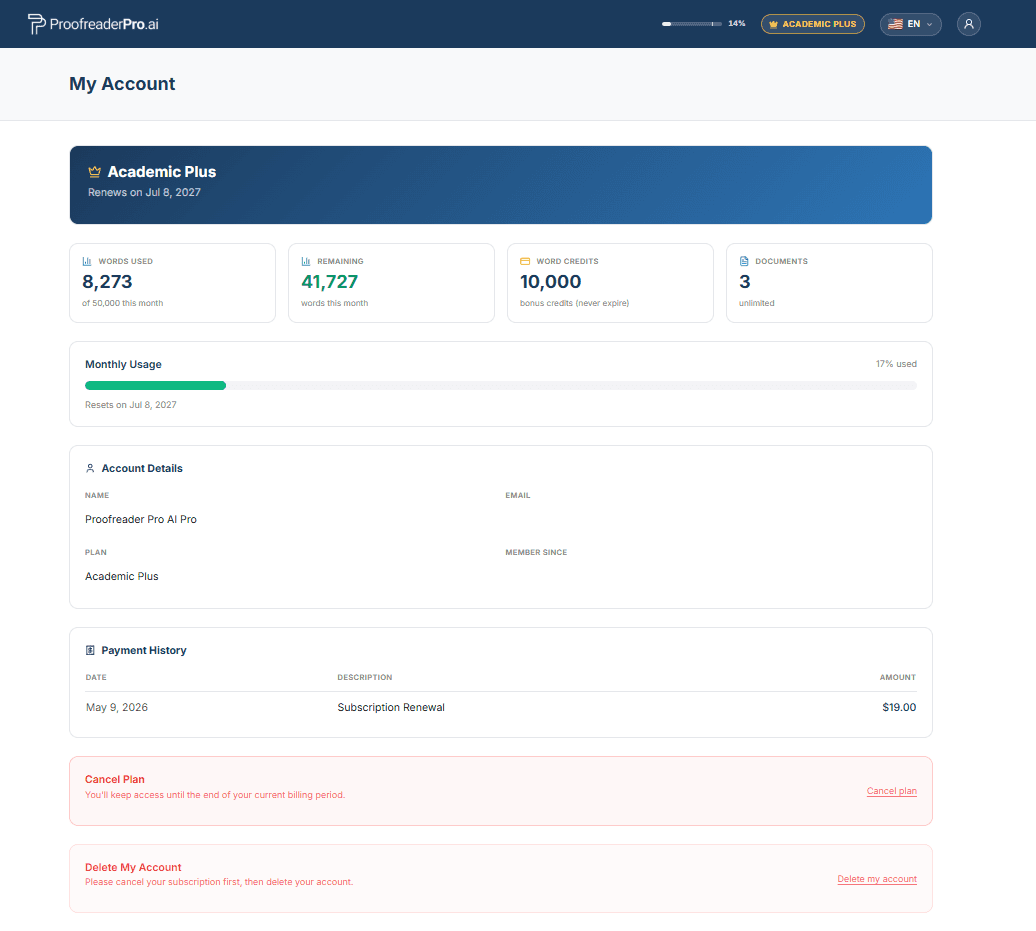
در صفحه حساب، گزینه حذف حساب من را انتخاب کنید. این کار بهصورت دائم حساب، اسناد و دادههای شخصی شما را حذف میکند و قابل بازگشت نیست. اگر اشتراک فعالی دارید، ابتدا آن را لغو کنید تا هیچ هزینه دیگری دریافت نشود.
روی آیکن کره (globe) در گوشه بالا-راست کلیک کنید و زبان موردنظر خود را انتخاب کنید. کل رابط کاربری به زبان انتخابشده تغییر میکند.
منوی کاربری را در گوشه بالا-راست باز کنید و Support را انتخاب کنید، یا مستقیماً با ما از طریق hello@ProofreaderPro.ai ایمیل بزنید. ما حداکثر تا پایان یک روز کاری پاسخ میدهیم.
متن نگارش دانشگاهی خود را در یک جا ویرایش، انسانیسازی، بازنویسی و ترجمه کنید. شروعش رایگان است، بدون نیاز به کارت اعتباری.
شروع رایگان